 Alexandre Jollier
Full Guide
Mistfall Hunter Graphics Settings: The Best PC Configuration
In brief
Mistfall Hunter requires a few targeted tweaks to run smoothly, even on borderline setups. The secret: set the cap at a stable 60 FPS, disable ray tracing, lower shadows, and choose FSR or TSR depending on your GPU.
Mistfall Hunter runs unevenly on quite a few setups, even those that exceed the official recommendations. A few well-targeted tweaks are enough, though, to eliminate most of the stuttering. Here's what works.
The basics: display mode and FPS cap
The first thing to do before touching anything else: switch to borderless windowed mode if you have multiple monitors, and set the frame rate limit to 60 FPS. It sounds counterintuitive, but both the 90 FPS mode and the uncapped mode generate clearly visible micro-stutters. Capping at 60 stabilizes all of that.
Vertical sync should stay disabled by default - it adds input latency for a questionable gain. If you still notice screen tearing, turn it on: you'll lose a few frames, but perceived smoothness will be better.
Antialiasing: FSR or TSR depending on your GPU
First switch the Overall Quality preset to Custom - that's the gateway to fine-tuning each setting. For antialiasing:
- AMD: choose FSR, Balanced or Performance mode depending on your headroom.
- Nvidia: choose TSR.
- FSR Frame Generation: leave it Off for now - the gain is too unpredictable on borderline setups.
- AMD Anti-Lag 2: enable it if your card supports it.
Ray tracing and shadows: the two biggest culprits
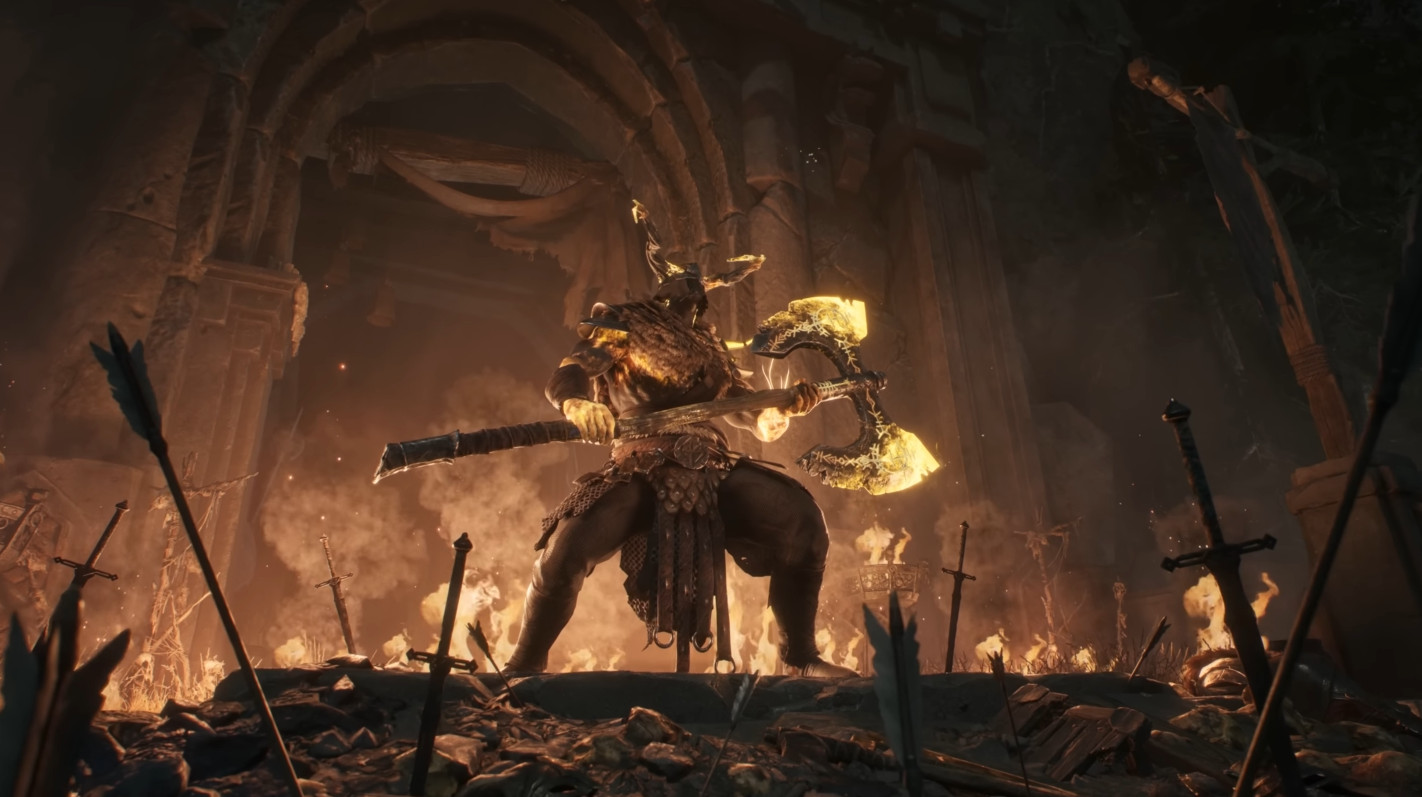
Ray tracing should be disabled without hesitation. The GPU cost-to-visual-gain ratio just isn't worth it in the game's current state. Same story for shadows: set the quality to Low - it's the setting that weighs most heavily on performance, across all setups.
Recommended settings table
| Setting | Recommended value |
|---|---|
| Display mode | Borderless windowed |
| Vertical sync | Disabled |
| FPS limit | 60 |
| Overall quality | Custom |
| Antialiasing type | FSR (AMD) / TSR (Nvidia) |
| FSR mode | Balanced / Performance |
| FSR Frame Generation | Disabled |
| AMD Anti-Lag 2 | Enabled |
| Ray Tracing | Disabled |
| Shadow quality | Low |
| View distance | Medium / High |
| Character animation quality | Balanced |
| Texture quality | Low / Medium |
| Special effects quality | Low / Medium |
| Post-processing | Medium |
| Motion blur | Disabled |
| Global illumination | Medium |
| GPU crash debugging | Enabled |
Textures, effects, and post-processing
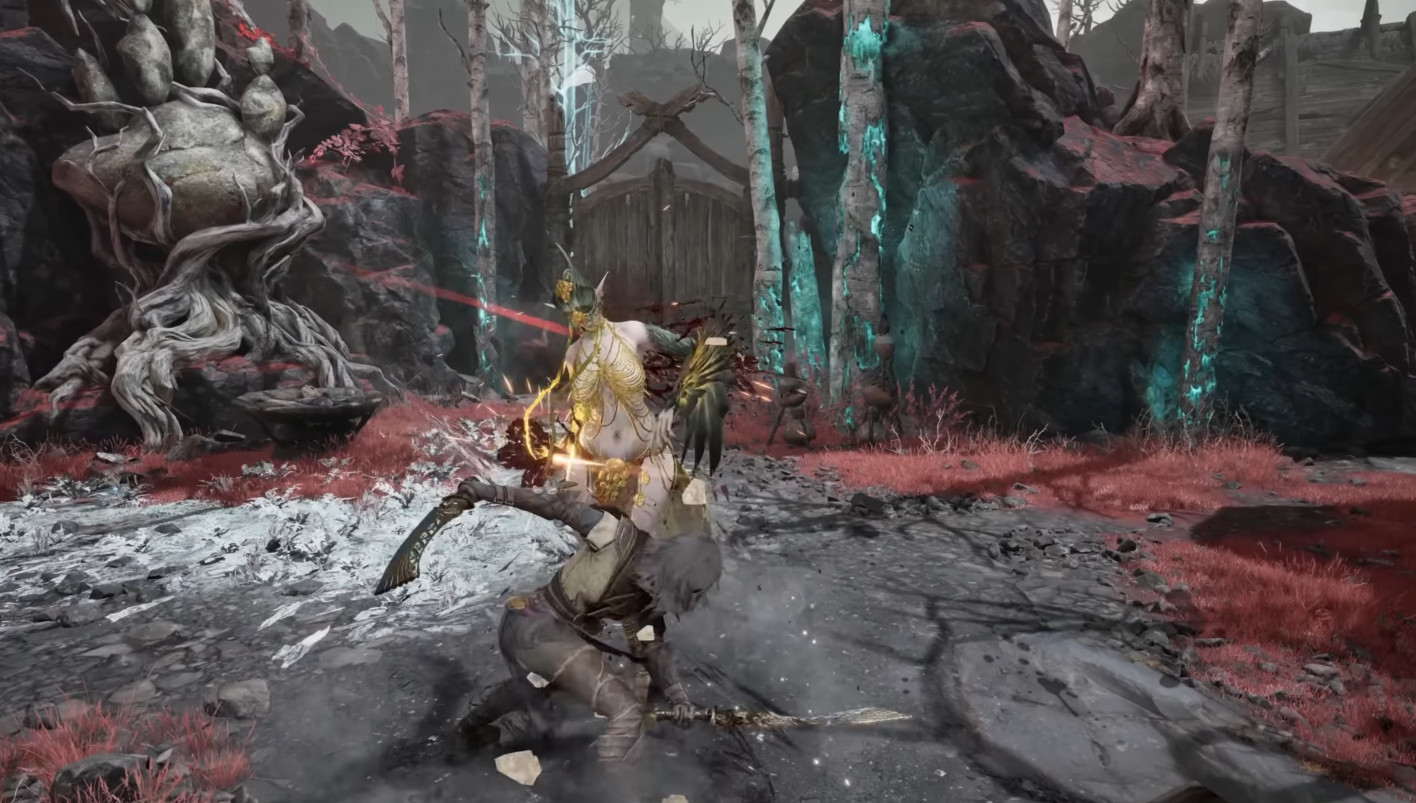
Texture quality and special effects can stay at Low to Medium without it really standing out in motion. Post-processing on Medium is a good compromise - too low and the image gets dull, too high and the GPU cost climbs fast.
View distance can handle a Medium to High setting without too much strain - but if you're still short on FPS after everything else, it's the first slider to lower. Motion blur, on the other hand, goes straight in the trash: no competitive value and a non-zero cost.
Global illumination stays on Medium. Turning it off completely degrades readability in dark environments too much, especially when fog effects and volumetric lighting are central to the scenes.
What this looks like in practice
On a setup above the recommended specs, these settings eliminate the stuttering that persisted without the 60 FPS cap. A stable 60 FPS beats an unstable 90 FPS by a wide margin, regardless of the class you're playing.
The game should still get smoothed out further through post-launch patches. The settings above mainly target setups close to the minimum requirements - if your machine is genuinely powerful, you can bump up textures and effects depending on your available VRAM, and consider gradually raising the FPS cap.
Share this article
Would you rather aim for a smooth 60 FPS or try for 90+ with a risk of stuttering?
Frequently asked questions
Why 60 FPS instead of 90 or unlimited?
Both the 90 FPS and unlimited modes produce visible micro-stutters. Capping at 60 FPS stabilizes everything with no perceptible sacrifice in actual smoothness.
Do you really need to disable ray tracing?
Yes, without hesitation. The GPU cost versus visual gain ratio isn't worth it in the game's current state. You'll gain far more in performance than you'll lose in visual quality.
How much impact does shadow quality have on FPS?
It's the setting with the biggest performance hit, across all setups. Switching to Low frees up massive resources.
I have to choose between FSR Frame Generation and Anti-Lag 2, which one should I enable?
Leave Frame Generation set to Off for now — the gain is too unpredictable on borderline setups. Enable Anti-Lag 2 if your AMD card supports it, that's the right call.
If I'm still short on FPS after all these tweaks, where should I start cutting further?
Draw distance is the first slider to reduce — it doesn't cost too much and the visual damage stays acceptable. Textures and special effects set to Low are your second option.
Key takeaways
- A stable 60 FPS is better than a stuttering 90 FPS, even if it seems counterintuitive.
- Ray tracing and high-quality shadows: cut them right away, the performance-to-visual ratio isn't worth it.
- FSR (AMD) or TSR (Nvidia) in Balanced/Performance mode stabilizes antialiasing without too much overhead.
- Motion blur goes straight in the trash: zero competitive benefit and a non-zero cost.
- Frame Generation and Anti-Lag 2: disabled for the former, enabled for the latter if your card supports it.
Comments
No comments yet. Be the first to react!
Leave a comment
Similar guides
Latest articles

Your opinion counts
Rate Mistfall Hunter
Click a star to rate