


 Alexandre Jollier

The Sims 4 Tip: How to Save and Share a House
In brief
Discover how to save your house creations in The Sims 4 and share them with the community. This article guides you step by step to store your builds in your personal library or publish them on The Sims 4 Gallery.
The Sims 4 allows for plenty of creativity, particularly when it comes to building and customizing houses. This article will explain how to save your houses in your personal library, and how to share them via the Gallery in The Sims 4.

How to save a house in your library
The personal library in The Sims 4 is a great place to store all your creations and enjoy them again in other saves. This feature will be especially useful if you've spent hours building the house of your dreams and want to save it for later use without necessarily sharing it with other players. To save a house in your personal library, follow these simple steps:
- Go to the lot where the house you want to save is located
- Activate Build Mode by clicking on the hammer icon in the top menu
- Locate and select the Save button in My Library in the toolbar
- Choose the Save Lot option
- Fill in the requested information, such as the lot name, number of rooms and bathrooms
- Add a detailed description if you wish (this will help you easily find your creation later)
- Click the arrow in the bottom right corner of the screen to finalize the save
Your house is now saved in your personal library and you can access it at any time. The most efficient way to save a house in The Sims 4? Saving it in Build Mode! This will let you freely use the house at any time in any save file. It's the perfect method for keeping your creations on hand, or simply as a backup before making changes.
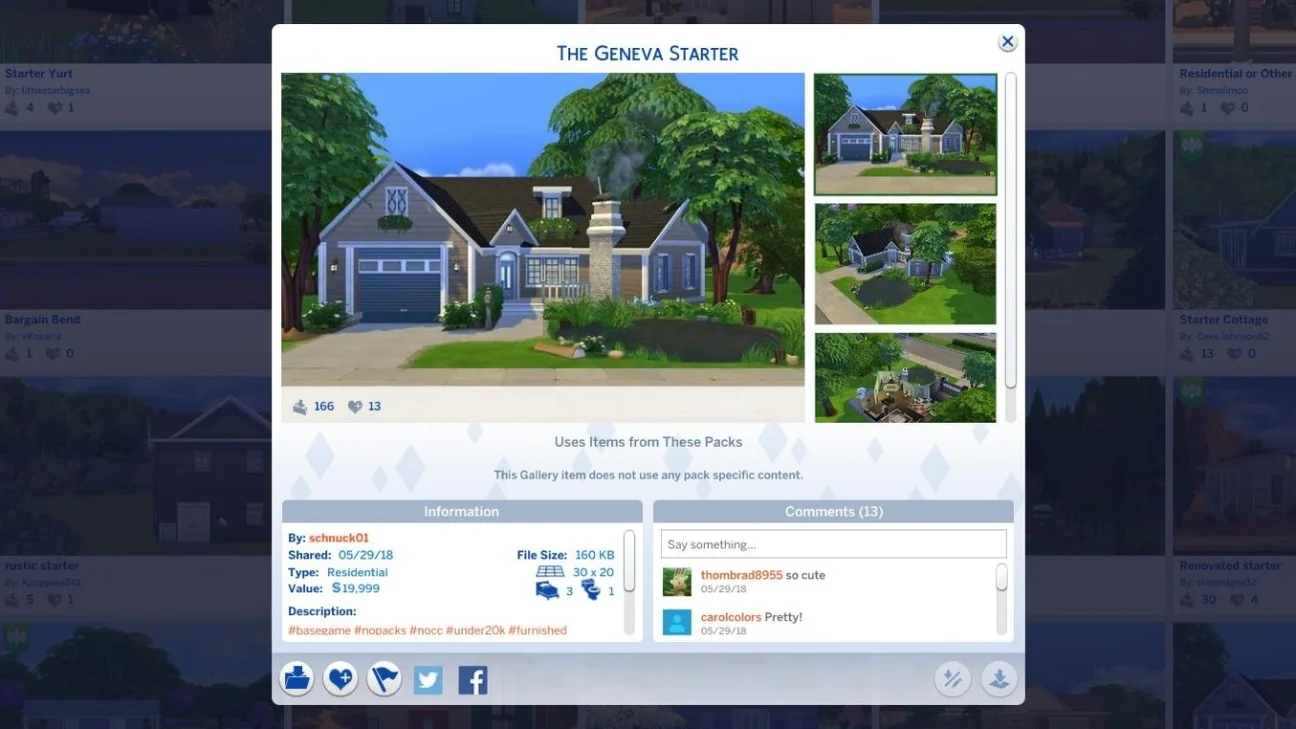
How to share a house on The Sims 4 Gallery
The Sims 4 Gallery is a very active and effective community tool, where Sims, houses and lots from players around the world are shared.
To share your house on the Sims 4 Gallery, follow these steps:
1. In Build Mode, go to the lot containing the house you want to share.
2. Locate and click the "Save Lot" button in the top toolbar.
3. Click "Save Lot" in the menu that appears.
4. Carefully fill in the information about your creation (name, number of rooms, etc.).
5. Write a description that grabs attention and makes other players want to download your creation.
6. Click the button in the bottom left corner of the screen to publish your creation to the Gallery.
Once your house is published on the Gallery, it will be available to all Sims 4 players.
Note
Be careful not to forget to add hashtags related to your creation to give it more visibility.
It is also possible to save and share rooms rather than the entire lot. Simply, in Build Mode, select the room to save and instead of keeping the "lot," choose to save the room.
Share this article
What's your main use for saving houses in The Sims 4?
Frequently asked questions
How do I save a house to my personal library in The Sims 4?
Access the lot in Build Mode, click on "Save to My Library", select "Save Lot", fill in the requested information (name, number of rooms) and confirm the save.
What's the difference between saving and sharing a house?
Saving to your personal library keeps the house private for your own use, while sharing it on The Sims 4 Gallery makes it accessible to players all over the world.
Can I share a single room instead of an entire house?
Yes, in Build Mode, you can select a specific room and save it as a room instead of saving the complete lot.
Why should I add a detailed description to my creation?
A complete and appealing description helps other players understand your creation and encourages them to download it, while also allowing you to easily find your own creations.
Key takeaways
- The personal library lets you save your houses to reuse them without sharing them.
- Build Mode is the ideal method to save and share your creations efficiently.
- The Sims 4 Gallery is a community platform where you can publish your houses for other players to download.
- Don't forget to add relevant hashtags to increase your creation's visibility.
- You can save individual rooms in addition to complete lots.
Comments
No comments yet. Be the first to react!
Leave a comment
Similar guides




Latest articles



Your opinion counts
Rate The Sims 4
Click a star to rate