
 Fabian Lainé
Full Guide
Minecraft 26.3: AZERTY keyboards finally handled correctly, the guide to the new PC settings
In brief
Minecraft 26.3 overhauls keyboard handling by switching from GLFW to SDL3, finally closing two long-standing bugs that had made AZERTY a nightmare since 2018. The French keyboard now works natively, the mouse gains 48 assignable buttons, and PC settings are being reorganized from the ground up: borderless fullscreen by default, Alt + F4 disabled, and a redesigned world menu.
Since Snapshot 4 on July 16, Minecraft Java no longer relies on the same technical foundation: SDL3 has replaced GLFW for window management, keyboard and mouse input, and system integration. Snapshot 7, released on August 4, finished the job on the keyboard side by adding twenty additional key codes. For a French player, this isn't an engineering detail: two bug reports related to non-QWERTY layouts, open since the 1.13 era, have finally been closed.
The principle is simple. Your shortcuts are no longer registered based on the character your layout produces, but based on the physical position of the key on the keyboard. Switching from AZERTY to QWERTY no longer shifts your movement controls. At the same time, the "Raw Input" option has disappeared, borderless fullscreen has become the default mode, Alt + F4 no longer closes the game without explicit permission, and the "Open to LAN" button has given way to a redesigned "World Options" screen.
Here's the inventory of what has changed in your PC settings since 26.2, released on June 16, 2026, and what you should check right now.
SDL3 instead of GLFW: what it actually changes
Mojang sums up the switch in one sentence: the keyboard now uses SDL scancodes for physical positions, and SDL keycodes for text-editing shortcuts that depend on the layout. This distinction is the key to everything else.
- Game controls (move forward, jump, inventory, chat…) are tied to a physical location. The "Move forward" key stays on the same spot on the keyboard, whether Windows is set to French, English, or German.
- Text input shortcuts (select all, copy, paste in chat, on a sign, or in a command block), on the other hand, follow your layout. On an AZERTY keyboard, Ctrl + A now correctly corresponds to the key marked A, rather than the position of the American Q.
This second point closes report MC-121278, which described exactly this symptom: shortcuts mapped to the American layout even when the user was using a different one. Report MC-133407, which flagged shifted key bindings after the switch to 1.13 for anyone not playing on QWERTY, falls in the same snapshot. Two long-standing irritants for the French-speaking community. If you switch back and forth between two layouts — many players switch to QWERTY for certain games and back to AZERTY for typing — Minecraft will no longer rewrite your bindings behind your back.
Twenty new assignable keys, displayed in English in the French client
Snapshot 7 adds twenty key codes that the engine previously couldn't name, inherited from the SDL scancode set: Again, Menu, Copy, Cut, Find, Help, New, Paste, Save, Stop, Undo, Play/Pause, Mute, Volume Down, Volume Up, plus five numpad keys (comma, period, parentheses, and plus-or-minus sign). Multimedia keys on a desktop keyboard thus become assignable, and the Menu key, previously displayed in its raw form key.keyboard.101, finally has a name.
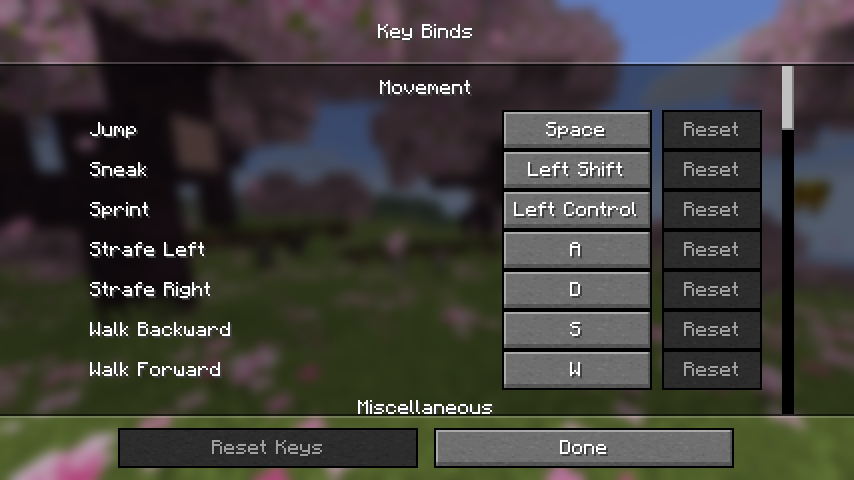
Two clarifications matter for the French-speaking audience. First, these twenty labels are not yet included in the French language file shipped with snapshot 7: the FR client falls back to English and therefore displays "Copy", "Paste" or "Volume Up" as-is in the binding menu. Second, the names for Alt and the Windows key now vary depending on the operating system. In English, "Left Win" and "Right Win" have become "Left Meta"; the French file, meanwhile, still displays "Win gauche" and "Win droite", as well as "Alt" and "Alt Gr".
Mouse: "Raw Input" disappears, 48 buttons supported
The "Raw Input" option has been purely and simply removed from the mouse settings. This is not a regression: relative mode is now active permanently during gameplay, which matches the behavior previously obtained by leaving the option enabled. If you were among the rare few who disabled it to work around a driver or capture software issue, you'll need to retest your setup: the setting no longer exists.
On the other hand, the number of assignable mouse buttons goes from 8 to 48. Owners of MMO mice with a side button pad can finally make use of all their buttons. The snapshot 4 changelog notes, however, that this gain would in practice only apply to macOS and Linux.
Fullscreen: borderless becomes the norm
Borderless fullscreen is now the default mode and, more importantly, switching between borderless and exclusive fullscreen no longer requires restarting the game. The menu is organized around three entries — "Fullscreen", "Exclusive Fullscreen" and "Fullscreen Resolution" — supplemented by an "Exclusive Fullscreen Mode".
The French tooltips clearly settle the trade-off: with exclusive disabled, all input methods work but adaptive sync — G-Sync for Nvidia, FreeSync for AMD — remains inoperative; with exclusive enabled, adaptive sync works but certain input methods may be impaired. The choice therefore comes down to this:
- Variable refresh rate display and pursuit of maximum smoothness: enable "Exclusive Fullscreen".
- Frequent Alt-Tabbing, OBS capture or input via an IME (Chinese, Japanese, Korean): stay in borderless mode.
- On macOS: the question no longer arises, as exclusive fullscreen is no longer supported there.
The minimum window size is also set at 320 × 240 pixels.
Linux and macOS: native Wayland and accented keyboard input
On Linux, the game detects and prioritizes Wayland when available, instead of systematically going through the X11 compatibility layer. Be careful if you're testing older snapshots: entering exclusive fullscreen under Wayland caused the game to crash in snapshot 4. The fix arrived with snapshot 5 on July 21, so you need to be on at least that version.
On macOS, holding down a key while typing displays the system's native accent menu: writing "é" or "ç" on a sign no longer requires any contortions.
Alt + F4 no longer quits the game by default
Snapshot 6, released on July 28, introduced an option called "Quit Shortcuts", placed in the Controls section. It determines whether a keyboard shortcut can close the game: Alt + F4 on Windows and Linux, Cmd + Q and Cmd + W on macOS. According to the changelog, it is disabled by default: as things currently stand in the snapshots, these shortcuts no longer close the window until you re-enable them.
This is excellent news for hardcore mode, where an accidental Alt + F4 instead of an Alt + Tab sometimes costs an entire game. On the other hand, it's the first setting to turn back on if you're used to closing the game via the keyboard.
"Open to LAN" replaced by "World Options"
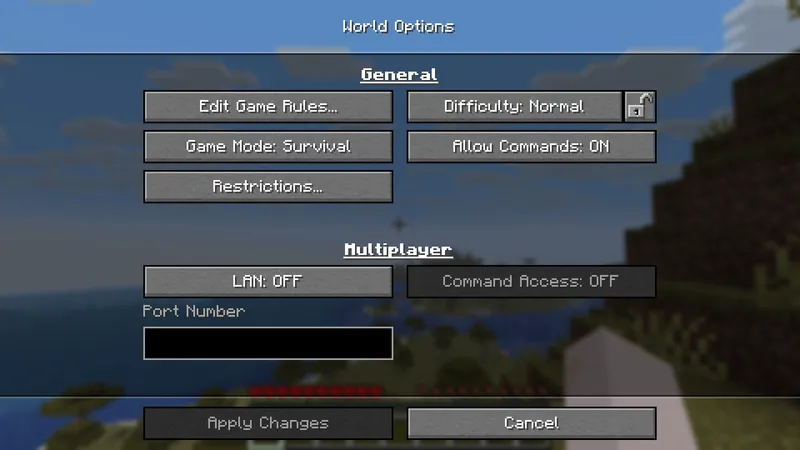
Still in snapshot 6, the "World Options" button has taken the place of the "Open to LAN" button in the pause menu. The screen is split into two sections. "General" covers the existing settings — game mode, difficulty, cheats. "Multiplayer" groups together the world's multiplayer range (LAN itself), the port used for opening it, and a new "Command Access" setting that determines whether players joining your game can use commands.
This last setting fixes a recurring problem in games played with friends: until now, allowing commands meant opening them up to everyone. The game refuses to change it in two cases, flagged by explicit tooltips: when commands are disallowed in the world, and when multiplayer range is disabled. Consequence for command regulars: /publish has lost its game mode argument. You now need to set the default mode with /defaultgamemode or via the corresponding button in "World Options", and reserve /gamemode for individual changes.
Debugging and transparency: two bonuses for tinkerers
The debug screen gains its own interface scale, independent from the game's, adjustable via F3 + F6. It also now displays the screen's refresh rate and a new player_speed entry, which gives the player's speed in blocks per tick — handy for comparing a speed potion, a horse, or an elytra without resorting to a mod.
On the rendering side, the "Improved Transparency" option has been rebuilt around an order-independent transparency algorithm, which the French tooltip describes as an approach that avoids display glitches when looking through multiple layers of translucent objects. It remains experimental and costly, and snapshots 4 through 7 have seen a string of fixes related to it. The "Toggle Improved Transparency" debug shortcut lets you switch it off on the fly to measure its actual cost.
The checklist to run through before the 26.3 release
- Create a dedicated launcher profile for snapshots, with a separate game directory: your 26.2 options and worlds remain untouched.
- Back up your
options.txtfile before launching a snapshot: that's where your key bindings live. - Go back through the entire "Controls" screen, especially if you use unusual keys (numpad, media keys).
- Retest your mouse if you had disabled "Raw Input", and rebind side buttons if you had more than eight.
- Choose your fullscreen mode depending on whether or not you use adaptive sync.
- Turn "Quit Shortcuts" back on if Alt + F4 is part of your reflexes.
Mojang has not announced any date for 26.3: snapshot 7 from August 4th remains the last published version, and there is still no indication of a move to pre-release. This is exactly the right window to test in: a change in inputs doesn't show up in a screenshot, you feel it from the very first game, and the reports filed during the snapshot phase are the ones with a chance of being addressed before release. If your keyboard, your mouse, or your Linux compositor is behaving oddly, now is the time to report it.
Share this article
Do you play in AZERTY and does this fix save part of your weekend?
Frequently asked questions
Do I need to reassign all my keybinds after updating to 26.3?
No. The switch to SDL3 guarantees your keys stay in the same physical position on the keyboard, regardless of your layout. However, if you used to switch to QWERTY to play other games, Minecraft will no longer overwrite your bindings when you switch back to AZERTY.
Why do the new keys show "Copy" and "Paste" instead of the French equivalents?
Snapshot 7 adds twenty key codes inherited from SDL, but the French translations haven't been added to the language file yet. The French client falls back to English for these labels, it's a matter of days or weeks before full localization arrives.
I need to use Alt + F4 to quit the game, how do I re-enable that shortcut?
Go to Options > Controls, find the new "Exit Shortcuts" option and re-enable it. By default, it's disabled to prevent accidental closures, especially in hardcore mode.
I record my games with OBS, should I stay in borderless fullscreen or can I switch to exclusive mode?
Stay in borderless mode. Exclusive mode enables adaptive sync (G-Sync, FreeSync) but blocks certain input methods and can cause issues with OBS or other capture tools.
On Linux, does Wayland work properly now?
Yes, but only if you're on at least snapshot 5 from July 21st. Snapshot 4 caused the game to crash in exclusive fullscreen under Wayland, the bug has since been fixed.
Key takeaways
- AZERTY is no longer registered by character but by physical position, your shortcuts stay in the same place when you switch layouts
- Twenty new assignable keys are arriving, including media and numpad keys, but they display in English on the French client
- The "Raw Input" option disappears since relative mode is now permanent in-game, a net gain for MMO mice which now access 48 buttons
- Borderless fullscreen becomes the standard with switching without a restart, exclusive mode remains the option for G-Sync and FreeSync
- Alt + F4 no longer closes the game without explicit authorization, and "Open to LAN" gives way to a more granular "World Options" menu
Comments
No comments yet. Be the first to react!
Leave a comment
Similar guides
Latest articles

Your opinion counts
Rate Minecraft
Click a star to rate