

 Fabian Lainé
Full Guide
Cyberpunk 2077: which graphics mode to choose in 2026 on PS5 Pro, Xbox Series, Switch 2 and PC
In brief
In 2026, Cyberpunk 2077 spans six ecosystems with radically different graphics menus. PS5 Pro imposes simple ray tracing, PS5 and Xbox Series X|S remain locked to 60/30 fps, Switch 2 prioritizes smoothness above all, and PC must choose between DLSS, FSR 4.1, and XeSS depending on the graphics card. The real performance savings come from reflections and volumetrics, never from textures.
Since the PlayStation 5 Pro update on April 8, 2026, and the game's arrival on Xbox Game Pass on March 10, Cyberpunk 2077 runs on more configurations than ever — and its Graphics menu has never been more cluttered. Three modes on PS5 Pro, two on PS5 and Xbox Series X|S, two on Switch 2, and half a dozen competing upscaling technologies on PC. Here's how to decide, platform by platform, using CD Projekt Red's official figures.
One clarification that avoids a lot of confusion: the latest numbered content update remains 2.3 (July 2025), followed by the 2.31 patch in September 2025. Everything that has changed since then relates to rendering, not content. On one hand, the PS5 Pro port from April 2026; on the other, the backport of FSR 4.1 to Radeon RX 7000 cards via the Adrenalin 26.6.2 driver from June 23, 2026. If you haven't touched your settings in a year, they're outdated.
The logic is the same across all platforms: in Cyberpunk 2077, it's global illumination, reflections, and volumetrics that are expensive, never textures. So that's the order in which you should scale things down — and above all, don't start by cutting texture quality, which only eats up VRAM.
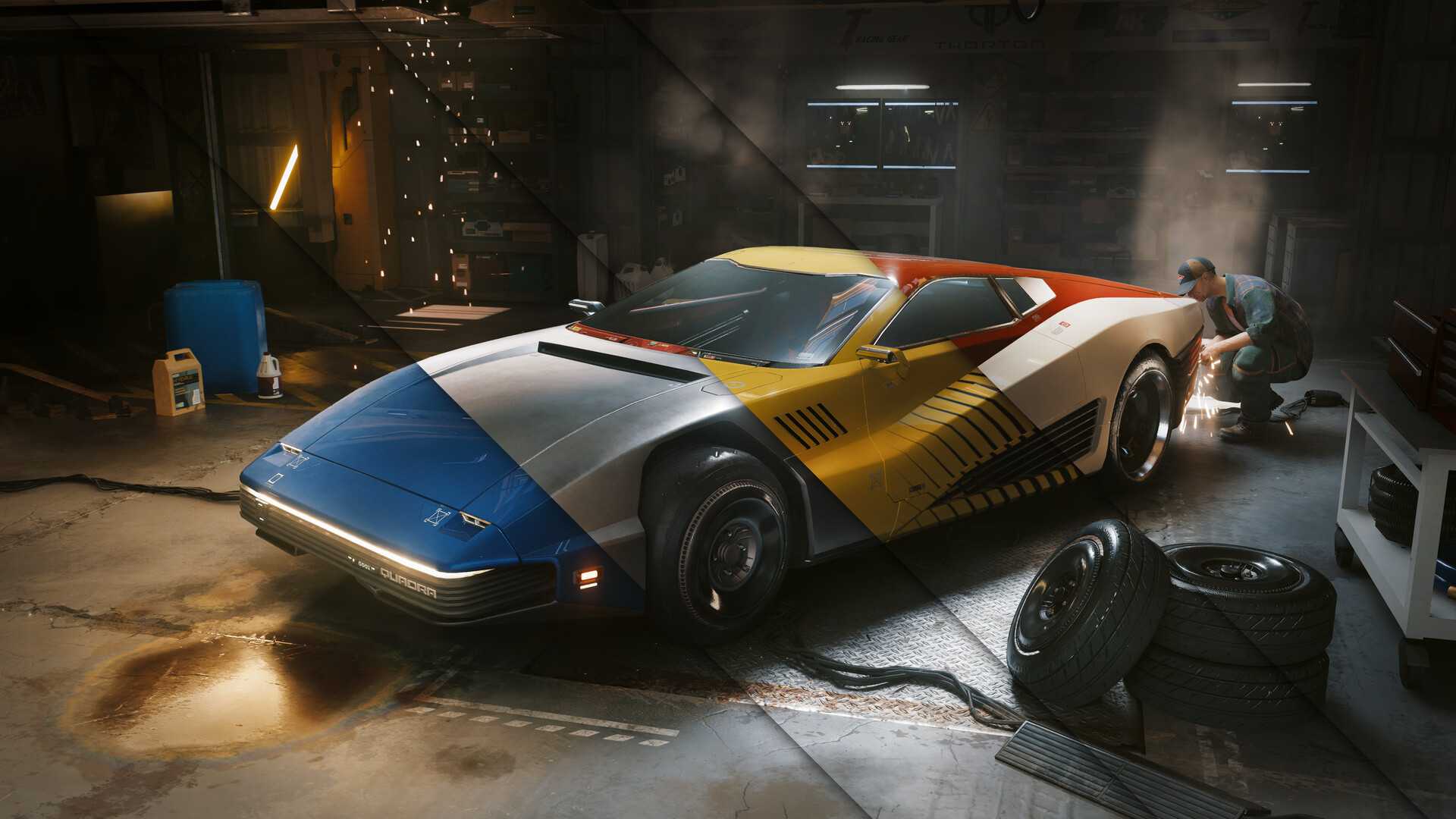
PS5 Pro: three modes, and only one worth setting as default
The free update from April 8, 2026, made the PS5 Pro the best console version of the game. It brings PSSR (Sony's AI-based upscaling), a BVH8 acceleration structure for ray tracing, VRS (variable rate shading), and an extension of ray tracing to vehicles, transparent surfaces, and shadows. All of this translates into three modes:
| Mode | Target frame rate | Who it's for |
|---|---|---|
| Ray tracing mode | Stable 60 fps | The default compromise, recommended by CD Projekt Red |
| Performance mode | 60 fps, up to 90 fps with a VRR display | 120Hz displays, mouse-and-keyboard players or controller users with fast-paced aiming |
| Ray tracing Pro mode | 40 fps with HFR enabled, 30 fps otherwise | Photo mode, slow-paced exploration, 120Hz TVs only |
The classic trap is picking Ray tracing Pro mode thinking you're getting "the best-looking" option, then getting stuck with 30 fps for forty hours because the TV doesn't support 120Hz. Standard ray tracing mode delivers most of the reflections and shadows for double the smoothness: that's the one to leave on, switching to Pro only when you break out photo mode.
Performance mode, meanwhile, is only worth it if your display actually supports VRR above 60Hz. Without VRR, it caps at 60 fps just like ray tracing mode, but without the reflections: the math is easy.
PS5 and Xbox Series X|S: what VRR changed, and what it didn't
On the base consoles, the offering hasn't changed in years: a performance mode at 60 fps and a ray tracing mode at 30 fps, the latter mostly limited to shadows and a few indoor reflections. The one new development goes back to update 2.3, which added support for VRR (variable refresh rate) on PlayStation 5 and Xbox Series X|S.
On PlayStation, the gain is real: the cap disappears and the intermediate frame rates no longer cause visible stutter. On Xbox Series X, however, Digital Foundry's measurements showed that the console does emit a VRR signal without anything actually unlocking: performance mode stays locked at 60fps and ray-tracing mode at 30fps.
The conclusion is therefore blunt but simple on these machines: performance mode at all times. Console ray-tracing costs half the smoothness for a gain that, at 30fps and in motion, simply isn't visible. Save it for photo mode. On Xbox Series S, the question doesn't even arise: smoothness comes first, no argument.
Nintendo Switch 2: performance mode, without hesitation
The official technical sheet from CD Projekt Red support is clear. Performance mode targets up to 40fps at 1080p on TV, and up to 40fps at 720p in handheld mode. Quality mode, meanwhile, runs at 30fps at 1080p in both configurations. In handheld mode, the Switch 2 screen's VRR smooths out the variations.
In other words, quality mode offers no higher resolution on TV: both modes display 1080p, reconstructed via DLSS. It simply drops smoothness from 40 to 30fps in exchange for more generous internal settings. On a machine where Cyberpunk 2077 is already an engineering feat, those 10 frames per second are worth far more than a few shadows. Quality mode only makes sense in handheld mode, where the smaller screen hides the reconstruction and the locked 30fps saves battery.
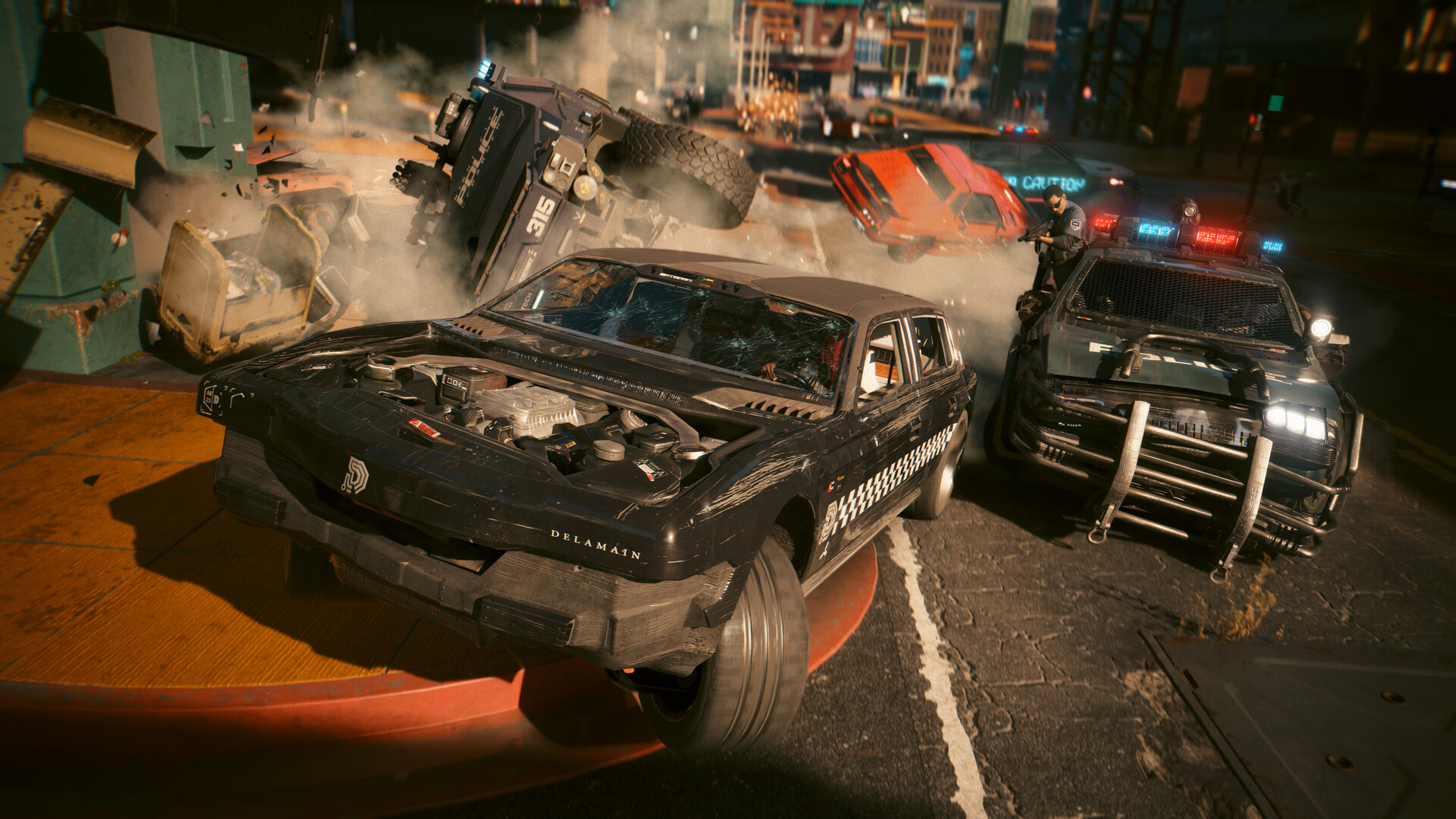
PC: which upscaling system for which card in August 2026
This is where update 2.3 changed things the most, opening up the game to FSR 4, FSR 3.1 frame generation, and XeSS 2.0 with its own frame generation. Combined with the June 2026 Adrenalin 26.6.2 driver, this gives the following table.
| Graphics card | Recommended upscaling | Frame generation |
|---|---|---|
| GeForce RTX 50 | DLSS | DLSS Multi Frame Generation (up to three generated frames per rendered frame) |
| GeForce RTX 40 | DLSS | DLSS Frame Generation |
| GeForce RTX 20 and 30 | DLSS | FSR 3.1 Frame Generation |
| Radeon RX 9000 (RDNA 4) | FSR 4 / 4.1 | FSR Frame Generation |
| Radeon RX 7000 (RDNA 3) | FSR 4.1 as of driver 26.6.2 | FSR 3.1 Frame Generation only |
| Intel Arc | XeSS 2.0 | XeSS Frame Generation |
The key takeaway for Radeon RX 7000 owners: AMD has indeed backported FSR 4.1 to RDNA 3 and claims image quality identical to that achieved on RDNA 4, but only the upscaling portion has been backported. FSR 4's frame generation remains exclusive to the RX 9000 series. An RX 7900 XTX therefore gains enormously in sharpness compared to FSR 3.1, without regaining interpolated frames. If you'd stuck with FSR 3.1 out of habit, the switch is well worth it: it's the best free gain of the year for this generation of cards.
Two extra habits round out the picture. First, frame generation is only worthwhile if you're already producing 50 or 60 frames per second in classic rendering: below that, it just adds latency and artifacts on Night City's neon signs. Second, a Balanced mode in 4K often produces a cleaner image than a Quality mode in 1440p, for a comparable cost.
Path tracing: the official documentation is more honest than comparison videos
Path-traced rendering is enabled in Settings → Graphics → Quick Preset by choosing Ray Tracing: Overdrive mode, or separately via the Path Tracing (Technology Preview) option in the Ray Tracing section. It's disabled by default, and that's no accident.
CD Projekt Red officially recommends a GeForce RTX 40 starting from the 4070 Ti. The RTX 3090 is mentioned, but limited to 1080p and 30 fps. On the video memory side, the publisher gives precise thresholds: 8 GB at 1080p, 10 GB at 1440p, 12 GB at 2160p. Below that, you don't enter Overdrive mode, you enter micro-stutter territory.
There's an underrated middle-ground solution: the option that applies path tracing only to photo mode captures, accessible to any ray-tracing-capable card with at least 8 GB of video memory. You play with classic ray tracing at 60 fps, and your captures benefit from full lighting. For most configurations, that's the right compromise.
The settings that cost the most for what they give back
If you need to claw back frames per second without touching upscaling, the order of stripping things down is always the same. Here are the exact labels from the French client:
- Screen Space Reflections Quality: the first to go down. Going from High to Low frees up a double-digit percentage, and the difference is only visible when standing still in front of a puddle.
- Volumetric Fog Resolution and Volumetric Clouds Quality: very costly at night and in the rain, which is to say, 80% of the game. Medium is more than enough.
- Cascaded Shadows Range and Cascaded Shadows Resolution: the range is the real drain, the resolution is more noticeable. Lower the range first.
- Local Shadow Mesh Quality and Distant Shadows Resolution: solid gains, low visual impact in motion.
- Ambient Occlusion: leave it on Medium if you're not using ray tracing, no point pushing it higher.
- Crowd Density: this setting hits the CPU, not the GPU. If your drops happen at Kabuki or on Jig-Jig Street but not out in the Badlands, that's where you need to act.
What remains are the post-processing effects, which cost almost nothing performance-wise but degrade clarity: Film Grain, Chromatic Aberration, Depth of Field, Motion Blur and Lens Flare. Turning them off makes the image noticeably sharper, especially at 1080p and with aggressive upscaling. Finally, Slow HDD Mode has no reason to be enabled on an SSD anymore: it deliberately throttles asset loading.
The three-pass method
Rather than testing each slider in isolation, work by elimination. First pass: choose your scaling according to the table above and aim for Quality mode, without image generation. Second pass: measure in the game's worst-case scenario — an NCPD chase at night in the rain in Watson, never in a quiet interior. Third pass: go down the list of settings above in order, one by one, until you hit your target with a margin of ten frames per second.
This margin is the part everyone forgets. Cyberpunk 2077 has a very uneven frame rate depending on the district, and a setting locked right at 60 fps in the Badlands desert will drop below 45 the moment you get back to Jig-Jig Street. Keep some headroom, and you'll never have to reopen this menu again.
Share this article
On your platform, which graphics trade-off would actually matter to you?
Frequently asked questions
Do I really have to choose between smoothness and ray tracing on standard PS5?
Yes. At 30 fps in motion, console ray tracing is barely noticeable, while the lost 30 fps is genuinely disruptive. Keep ray-tracing mode for static screenshots, play in performance mode otherwise.
What's the difference between FSR 4 and FSR 4.1 on my RX 7900?
FSR 4.1 (since June 2026) improves upscaling sharpness compared to FSR 3.1 which you used before. Only frame generation remains exclusive to RX 9000 cards: you keep the classic version, but it's already a great free upgrade.
Is path tracing really impossible below an RTX 4070 Ti?
Not impossible, but micro-stutters are guaranteed. However, the "photo mode path tracing only" option works on any ray-tracing card with 8 GB: you play at a normal 60 fps and your screenshots benefit from full lighting. It's the right compromise for 99% of PC players.
Switch 2 handheld: is quality mode really worth the lost 10 fps?
No, except in photo mode. That constant 30 Hz mostly helps the battery. In gameplay, the smoothness of 40 fps outweighs the slightly better shadows of quality mode.
Do I need to lower texture settings to keep smooth performance? Is that normal?
No, that's a bad decision. Textures only cost VRAM, not frames. Target reflections, cast shadows, and volumetrics first — that's where the real performance waste hides.
Key takeaways
- On PS5 Pro, the 60 fps ray-tracing mode is the default setting — don't fall into the trap of the 30 fps Pro mode except for screenshots.
- PS5 and Xbox Series X|S without functional VRR: use performance mode at all times, console ray tracing isn't worth half the lost smoothness.
- Switch 2: performance mode reaches up to 40 fps in handheld mode, quality mode only adds battery drain without extra sharpness on TV.
- Radeon RX 7000 owners, switch to FSR 4.1 via the Adrenalin 26.6.2 driver — it's a massive sharpness gain that costs no frames.
- Frame generation is only useful above 50-60 fps in traditional rendering, otherwise it mainly adds latency and artifacts on signage.
Comments
No comments yet. Be the first to react!
Leave a comment
Similar guides
Latest articles



Your opinion counts
Rate Cyberpunk 2077
Click a star to rate