
 Fabian Lainé
Full Guide
Battlefield 6: the guide to custom lobbies and spectator mode — and why REDSEC runs at 30 Hz in tournaments
In brief
Custom lobbies and observer mode are coming to Battlefield 6 on August 18, 2026, finally giving tournament organizers and community event hosts dedicated tools: a pre-match lobby to set up teams and squads before launch, spectators with no assigned team, and admin delegation that survives a host leaving. But be warned: in REDSEC, the simulation runs at a constant 30 Hz, not a progressive ramp-up, a structural limitation for anyone setting up a competition.
Custom lobbies and observer mode for Battlefield 6 have been available since Tuesday, August 18, 2026. Their rollout was set for 12:00 UTC, that is 2:00 PM in Paris. They arrived at the same time as Top Gun, the second phase of Season 4, and are aimed first at those who organize matches: community nights, squad-versus-squad matches, amateur tournaments, content capture.
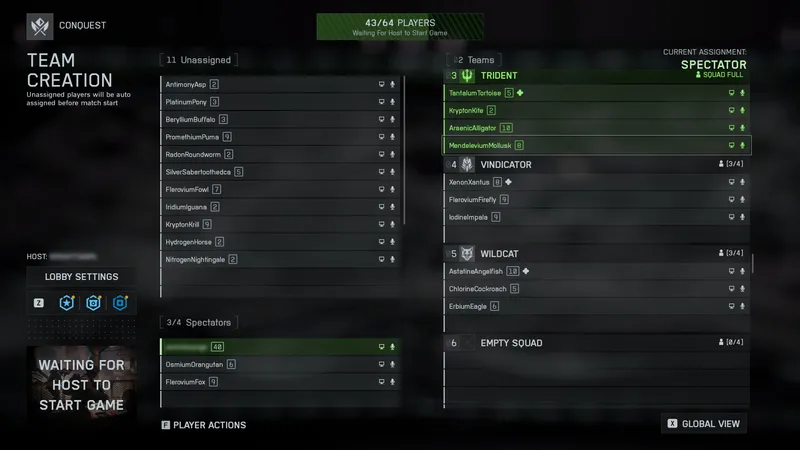
The system consists of two building blocks. The first, the custom lobby, is a dedicated type of Portal server that adds a pre-match lobby: a holding area where the host sorts everyone into teams and squads before the server starts loading the match. The second, observer mode, allows designated participants to follow the match without ever joining an active team.
And there is, in the official guide published by EA on August 17, a line worth pausing on before organizing anything: in custom lobbies for the REDSEC battle royale, the simulation runs at a constant 30 Hz from the start to the end of the match, instead of ramping up to 60 Hz as the number of survivors decreases. This is a deliberate trade-off by the studio, and the most consequential piece of information on the page for anyone setting up a competition.
A distinct server type, not a new version of Portal
Useful clarification: custom lobbies change nothing about how to create a Portal experience, a topic we covered on August 10. This is a dedicated Portal server type, rolled out on August 18, that sits on top of an existing verified Portal experience.
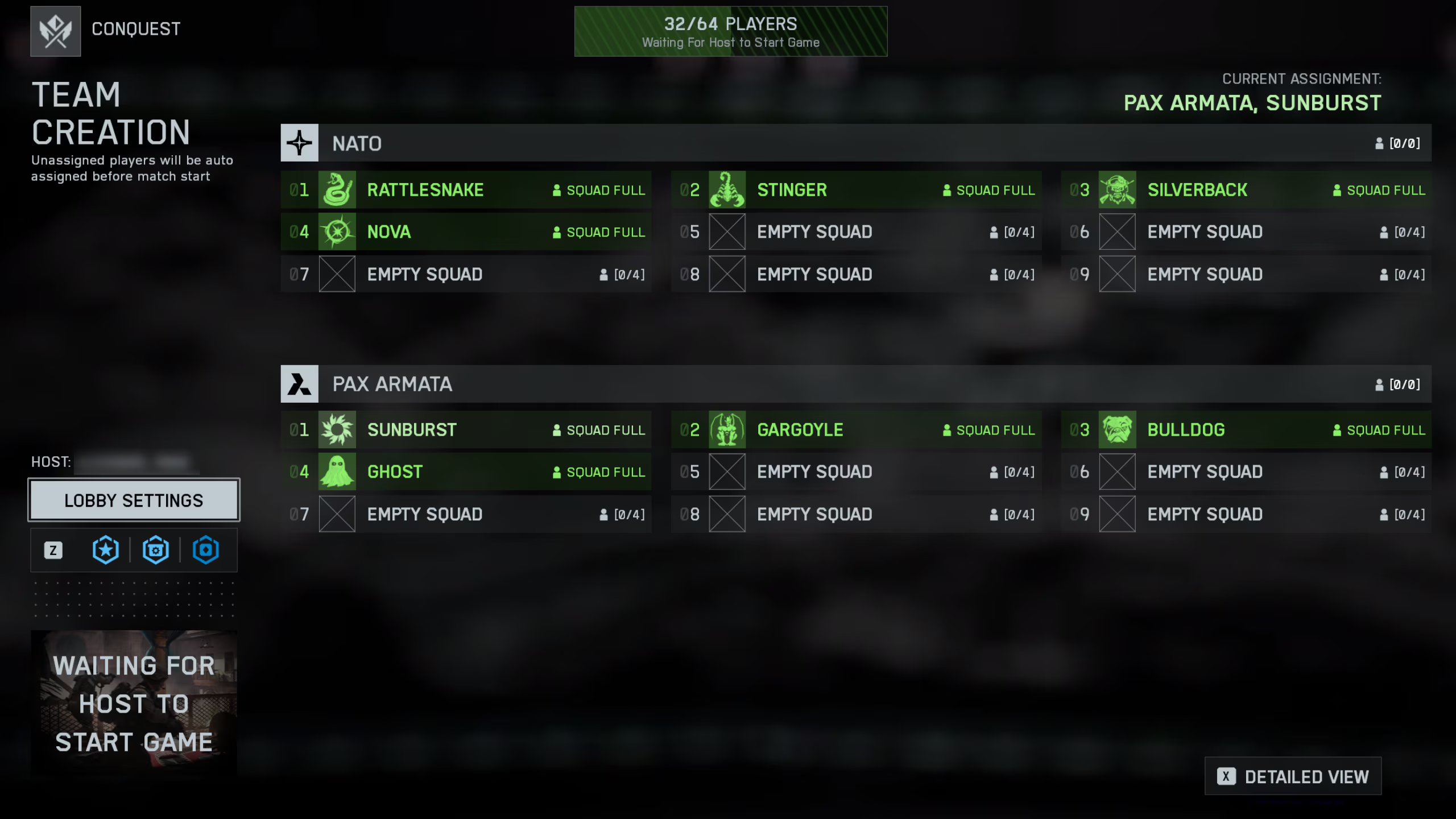
The difference from a standard Portal server comes down to one thing: the pre-match lobby, which regular servers don't have. There, the host has a full view of participants and puts together their teams and squads before the map loads, rather than having players switch sides once the action has already started.
| Detail | What EA says |
|---|---|
| Release | August 18, 2026, 12:00 PM UTC (2:00 PM in Paris), alongside the Top Gun phase |
| Where | Portal section of the main menu, on a supported verified Portal experience |
| Option to enable | "Enable Lobby" |
| Marker for players | "Lobby Enabled" tag in server info, on the Servers page |
| Pilot modes at launch | Conquest and Squad Battle Royale |
| Lobby simulation in REDSEC | A constant 30 Hz, instead of switching to 60 Hz at the end of the match |
Opening a custom lobby: the steps to follow
The procedure described by EA comes down to nine steps.
- Open the Portal section from the main menu.
- Choose a verified Portal experience from among those supported.
- Choose to host that experience.
- Enable the "Enable Lobby" option. This checkbox, and this one alone, is what turns hosting into a custom lobby.
- Adjust the available lobby and match settings.
- Invite your participants, or share the join code — it is hidden by default, so you'll need to reveal it in order to share it.
- Sort everyone into teams and squads from the pre-match lobby.
- Assign your admins and any additional spectators.
- Start the match once the lobby is set.
On the player side, two possible entry points. Either they browse the Servers page in the Portal section and spot, within the server information, the mention "Lobby Enabled": this is the label that confirms the presence of a pre-match lobby. Or they enter the access code provided by the host and land directly in the lobby. Once inside, they can choose their team or wait for the session to start — undecided players are automatically assigned when the session begins.
Admins and host migration: what really changes for a tournament
The host remains responsible for the lobby, but can delegate. The admins they designate get access to enhanced controls: moving players between teams and squads, removing someone from the lobby, deciding who plays and who spectates, managing supported settings, restarting or ending a match.
The most underrated point lies elsewhere: if the host leaves the match or drops due to a disconnection, a new host is automatically designated and the lobby keeps going, without needing to recreate it. For an amateur tournament, where the organizer often plays themselves, this is the feature that saves the most time over the course of an evening.
Two caveats. EA specifies that settings and controls vary depending on the selected experience: so test your exact setup before the big day. And the publisher does not publish any maximum number of admins per lobby; until that figure is documented, we won't guess it.
Spectator mode: three ways to watch, and a spot to reserve before kickoff
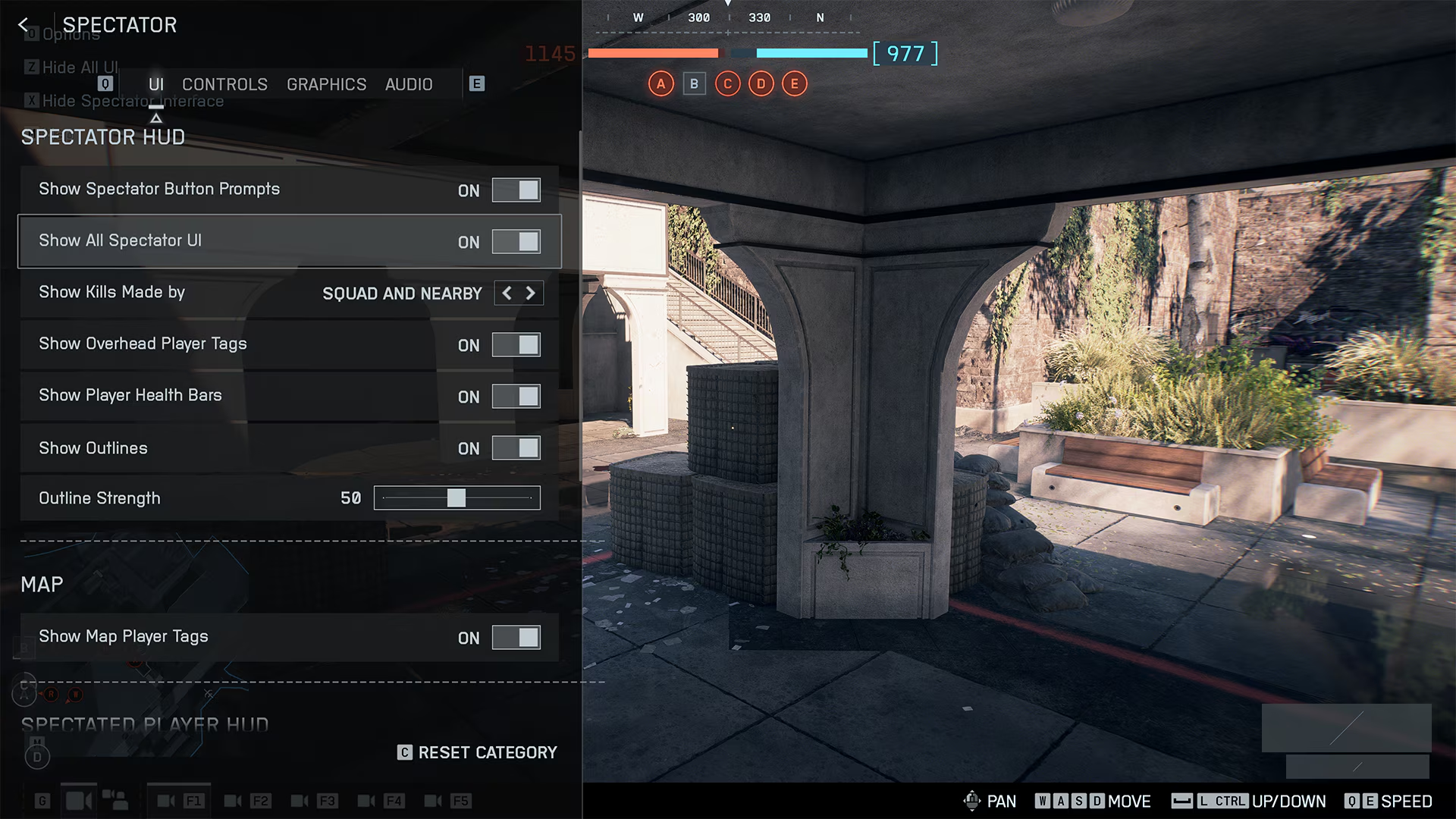
Spectator mode is set up beforehand. It's the host and admins who, from the pre-match lobby, assign eligible participants to the available spectator slots. Once the match starts, spectators are not assigned to any active team and cannot take part in the match: they just watch, that's it.
The tools cover three ways of following the action:
- Player tracking: lock onto an active combatant and switch between available viewpoints.
- First / third person toggle on the tracked player, depending on whether you want their firing perspective or their read of the terrain.
- Free camera, which detaches from the player to gain height and take in the whole battlefield.
On top of that, there's the display of supported information on team, squad, objective and match, and the adjustment of camera and interface options — their availability depends on the experience chosen. EA also doesn't publish the number of simultaneous spectators allowed in a lobby: we won't make that up either.
REDSEC at 30 Hz: what the tick rate trade-off gains, and what it costs
This is the part of the guide that most affects the quality of a competition. In Battle Royale REDSEC custom lobbies, the simulation runs at a constant rate of 30 Hz for the entire match. The usual behavior — a step up to 60 Hz as the number of remaining players decreases — doesn't apply here. The reason given is explicit: to guarantee quality performance with more than 100 participants in a single lobby.
So one thing is traded for another. What we gain is capacity: a format with more than a hundred people fits in a single lobby, which is exactly what a battle royale organizer is looking for. We also gain format stability: the simulation rate doesn't change along the way, and the end of a match plays out under the same technical conditions as the first minute, which makes rounds comparable.
What we lose is the increase in simulation precision at the end of the match. In classic play, the moment when only a handful of survivors remain benefits from a rate twice as high; in custom lobbies, it doesn't. It's the endgame — the most decisive sequence of a battle royale — that stays at the lower tier.
A word on what we won't write: EA does not detail the practical effects of this choice and quantifies nothing regarding hit registration, latency, or close-range duels. We're sticking to what's actually stated. The publisher also states it plans changes over time, while considering the current configuration satisfactory for competitive play.
The operational consequence, however, is clear: if you're organizing a REDSEC tournament in a custom lobby, treat the 30 Hz as a constant of your format, announce it to your participants, and don't compare performances achieved in custom lobbies with performances achieved in public matches.
What isn't covered yet, and where to start
The scope remains deliberately narrow. At launch, custom lobbies and spectator mode only support two pilot modes: Conquest and Squad Battle Royale. The rest will have to wait: EA announces an expansion to other verified Portal experiences during Season 4 and beyond, with no precise timeline. If your format relies on Breakthrough, Rush, or a custom experience, it isn't eligible today.
The publisher adds a directive that organizers would be wrong to skim over: before using a custom lobby for a community tournament or to settle a competitive stake, you need to review the controls actually available on the chosen experience, its current technical limitations, and EA's Community Tournament Guidelines.
For a first hands-on test before this weekend, proceed in this order. Open a lobby on a verified Conquest experience with a few regulars, to see which settings come up for you. Designate an admin, then test host migration by voluntarily disconnecting: this is the scenario you don't want to discover live. Finally, assign a spectator and have them cycle through the three cameras. Once these three checks are done, REDSEC's 30 Hz becomes an organizational decision, not a surprise.
Share this article
For a REDSEC tournament, does a constant 30 Hz worry you, or are you fine with it?
Frequently asked questions
How do you turn a standard Portal server into a custom lobby?
Go to the Portal section from the main menu, choose a supported verified Portal experience, select hosting, then check the "Enable Lobby" box. That single checkbox is what creates the pre-match lobby.
What happens if the tournament host disconnects?
A new host is automatically designated and the lobby continues without needing to be recreated. This is the feature that saves the most time for an amateur tournament where the organizer is also playing.
How do spectators follow the match in observer mode?
They have three tools available: player tracking to stay locked onto a combatant, a first/third-person toggle on that player, and a free camera that pulls back to show the whole battlefield.
Why does REDSEC run at 30 Hz in custom lobbies?
To ensure stable performance with more than 100 participants in a single lobby. You trade the ramp-up to 60 Hz at the end of the match for the ability to run a real competitive battle royale. The consequence: the endgame stays at the lower 30 Hz tier.
How do players find my tournament's lobby?
Either they spot the "Lobby Enabled" tag in the server info on Portal's Servers page, or they enter the access code you give them to land directly in the pre-match lobby.
Key takeaways
- The pre-match lobby lets you sort everyone into teams before the map loads, with no team-switching mid-action.
- The host can delegate to admins and the session automatically continues if they disconnect, saving time in amateur tournaments.
- Observer mode exposes three tools: player tracking, first/third-person toggle, and a free camera to frame the action.
- In REDSEC lobbies, the simulation stays at 30 Hz from start to finish, with no ramp-up to 60 Hz at the end of the match, in order to support more than 100 participants in a single lobby.
- Test your exact configuration before the big day, since settings and controls vary depending on the chosen Portal experience.
Comments
No comments yet. Be the first to react!
Leave a comment
Similar guides

Latest articles



Your opinion counts
Rate Battlefield 6
Click a star to rate