
 Fabian Lainé
Tips
Battlefield 6: the 1.4.2.0 "ADS Dispersion Crosshair" option is only active in the firing range — how to use it to stop missing at mid-range
In brief
The 1.4.2.0 update slipped in an ultra-useful option that went almost unnoticed: the Aiming Reticle Bloom. The problem? It only works in the default shooting range. Here's how to enable it in multiplayer and use it to finally understand why your mid-range bursts consistently miss.
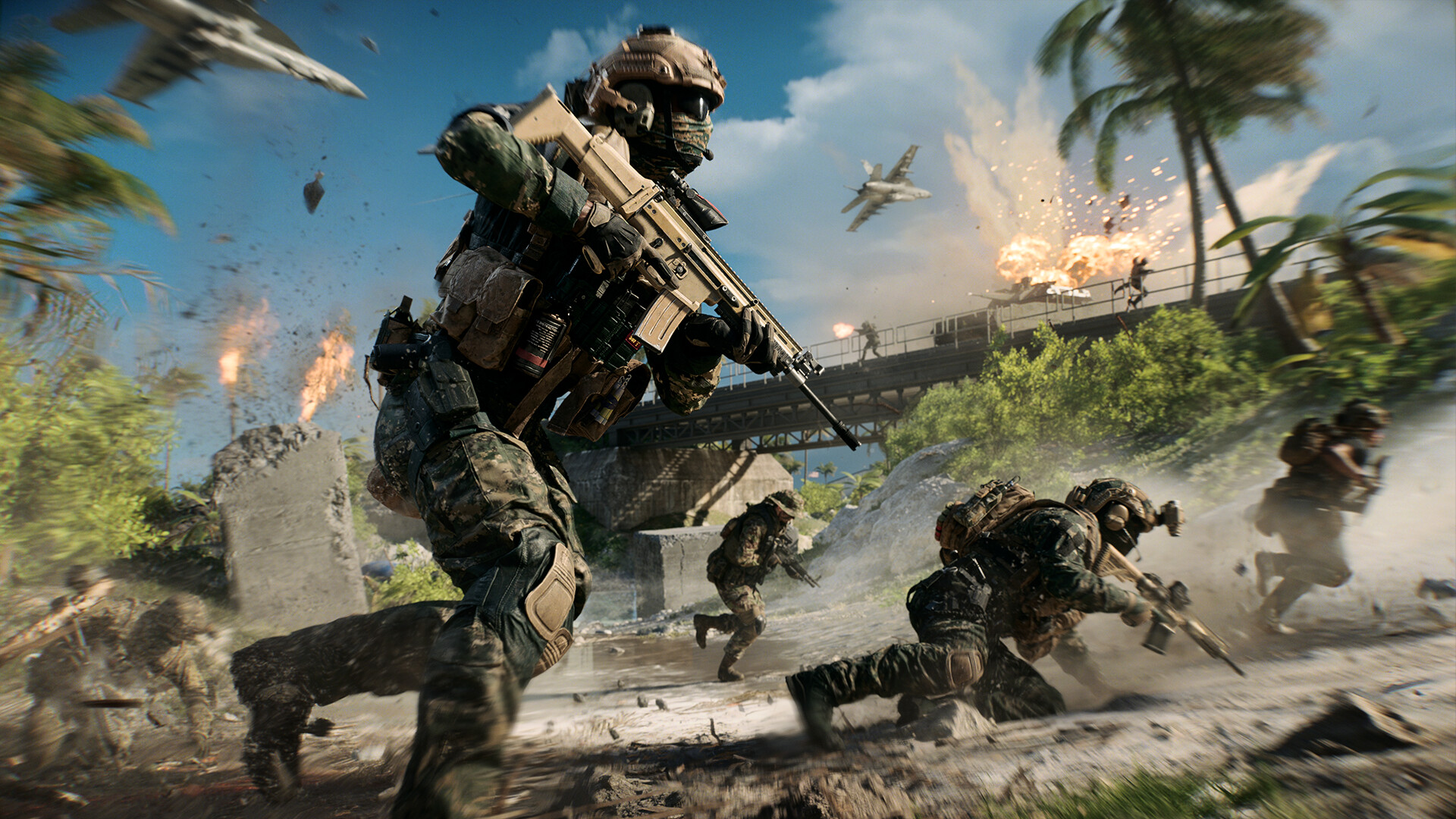
The 1.4.2.0 update for Battlefield 6, deployed on 18 August alongside the Top Gun mid-season, made plenty of noise for its jets, its Wake Island and its Carrier Strike mode. It also added, without anyone paying it much attention, the most useful option of the season for anyone who cannot land shots at mid-range: the ADS Dispersion Crosshair.
And the trap is already set: it is switched off where you actually play. By default it only works in the firing range.
What the option really shows
Battlefield Studios presents it as an option that displays an indicator representing the weapon's amount of dispersion — the bloom, or spread — while you are aiming down sight.
In practice, the indicator is a shape that grows as accuracy degrades. Two situations make it swell:
- firing in bursts while aiming with an automatic weapon — every round adds dispersion;
- moving — movement degrades accuracy, and the indicator shows it live.
That is where the option becomes a learning tool rather than a gadget. The studio's stated aim is to help players understand how dispersion works, and to adapt their shooting technique accordingly. Put another way: it makes visible the reason your ten-round bursts hit nothing at mid-range while your three-round bursts land.
Where to enable it, word for word
The option is labelled "ADS Dispersion Crosshair", and it sits under HUD / CROSSHAIR. The notes spell it out: the option "can be found under HUD/CROSSHAIR and is by default enabled in the firing range only".
Three states are therefore possible:
- Firing range only — the default value, the one the vast majority of players have never touched;
- All multiplayer experiences — the indicator follows you in standard multiplayer as well as in Portal;
- Fully disabled.
Two fine adjustments come with it: an opacity slider and a colour picker. They are not cosmetic. An indicator at full opacity in the middle of the screen is genuine visual clutter during a duel; dropping it to 30–40% is enough to read it out of the corner of your eye without masking the enemy silhouette. As for the colour, the rule is simple: pick one you will not see anywhere else on the tropical maps of Tsuru Reef — so avoid green and sand.
How to use it without losing your aim
The right method is not to play with the indicator permanently on. It is the opposite: use it to learn, then switch it off.
- Turn it on in the firing range (it already is) and fire a long burst while aiming with your main weapon. Watch how many rounds in the shape starts growing sharply: that is your useful burst length.
- Repeat the exercise while walking, then crouched, then stationary. You will see the dispersion gap between the three stances, and therefore when it is better to stop dead rather than keep advancing while firing.
- Switch it on in multiplayer for a few matches, at low opacity, long enough to transpose those markers onto targets that move.
- Turn it off once burst length has become a reflex. The goal is to internalise the mechanic, not to pilot a readout.
The aerial equivalent: a sandbox, and a code
The same logic applies to flying. The mid-season introduced Simplified Jet Controls, modelled on the simplified helicopter controls available since launch. The principle, as the studio describes it: instead of adjusting pitch, roll and yaw yourself, you only need to look in the direction you want to go for the aircraft to align with your view.
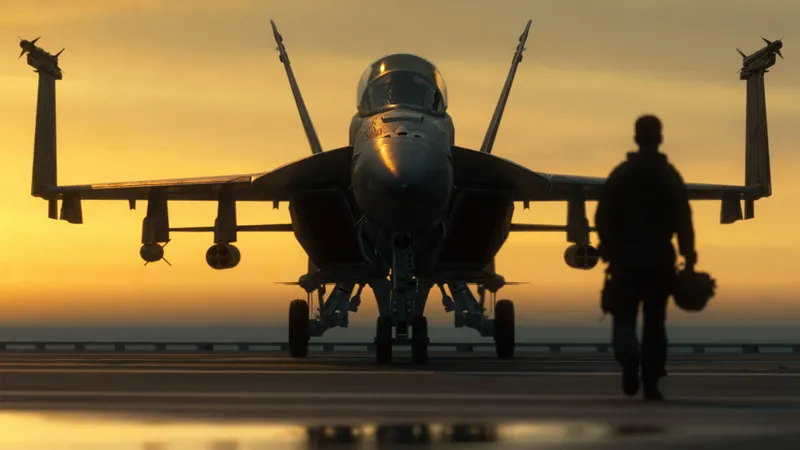
And the studio says where to practise, in its 20 August recap: "Head to the Air Vehicle Sandbox in Portal. Search for experience code 1264G and test your pilot skills." A playground dedicated to air vehicles, reachable via that experience code in Portal.
It is the best place to settle the only question that matters here: do simplified controls make you faster or slower? The better approach is to fly the same circuit twice, once with and once without, rather than taking the word of a player who has been flying since Battlefield 1942.
The other quality-of-life changes in 1.4.2.0
The official notes list several other comfort adjustments that, taken together, change the feel without you being able to say why:
- a new jet control assist making flying more accessible;
- improved underwater animations and transitions;
- fixes for collision glitches and unintended roof access;
- spawn points adjusted to avoid environmental traps;
- interface improvements around the clarity of rewards and progression.
The third point deserves a second's thought if you were playing a specific angle: roofs reachable by glitch have been closed off. A firing position that worked last week may no longer exist — your memory is not the problem.
One last word for anyone new to the game: the free trial opened with the mid-season runs "until 25 August". If you are testing these settings on the trial version, note them down before the window closes: preferences have to be set up again, but the dispersion markers you will have acquired stay acquired.
Share this article
Do you use the Aiming Reticle Bloom in multiplayer, or does it clutter your screen too much?
Frequently asked questions
Why does the Aiming Reticle Bloom only work at the shooting range?
This is Battlefield Studios' default configuration. The option is deliberately limited to the shooting range so that players don't stumble upon it by accident — you have to manually switch it to "All Multiplayer Experiences" to use it in a real match.
How should you properly configure the indicator's opacity?
Start at 30-40% opacity. At full opacity, the indicator becomes visual clutter that obscures your target during duels. At low opacity, you can read it out of the corner of your eye without losing track of things.
Should you keep the indicator on during matches or just use it to learn?
Use it to learn at the shooting range, carry your cues over into a few multiplayer matches, then turn it off. The goal is to internalize the bloom mechanic into your reflexes, not to play while constantly staring at an indicator.
What's the difference in bloom between firing while stationary and firing while walking?
Using the indicator, you'll clearly see that moving degrades accuracy — the indicator expands more when you're moving. This will teach you when it's better to stop dead rather than keep advancing while firing.
Are simplified flight controls for aircraft worth it?
The best way to find out is to test the same course twice in Portal with code 1264G — once with, once without. Rather than listening to a pilot who's been playing since Battlefield 1942, test it yourself and measure the results.
Key takeaways
- The Aiming Reticle Bloom makes your weapon's bloom visible, showing why your long bursts become inaccurate
- It's hidden in HUD / RETICLE and disabled in multiplayer by default — you have to manually enable it to play with it
- The right method is to use it to learn your effective burst length at the shooting range, then turn it off in real matches
- Reducing opacity to 30-40% is enough to read it without it visually cluttering your screen during duels
- Changing color depending on your terrain is crucial — avoid green and sand tones on tropical maps
Comments
No comments yet. Be the first to react!
Leave a comment
Similar guides


Latest articles






Your opinion counts
Rate Battlefield 6
Click a star to rate