
 Alexandre Jollier
Arknights: Endfield Photo Mode - Detailed Guide
In brief
Arknights: Endfield offers a comprehensive Photo Mode to capture your gameplay moments. Discover how to access this tool, master scene controls, apply filters, and compose perfect photos of your favorite operators.
In Arknights: Endfield, you can enjoy the Photo Mode to capture certain moments of your adventure. This article will explain how to make the most of it!
Photo Mode in Summary
Photo Mode lets you take screenshots of your adventures in Arknights: Endfield. To access it, simply follow these steps:
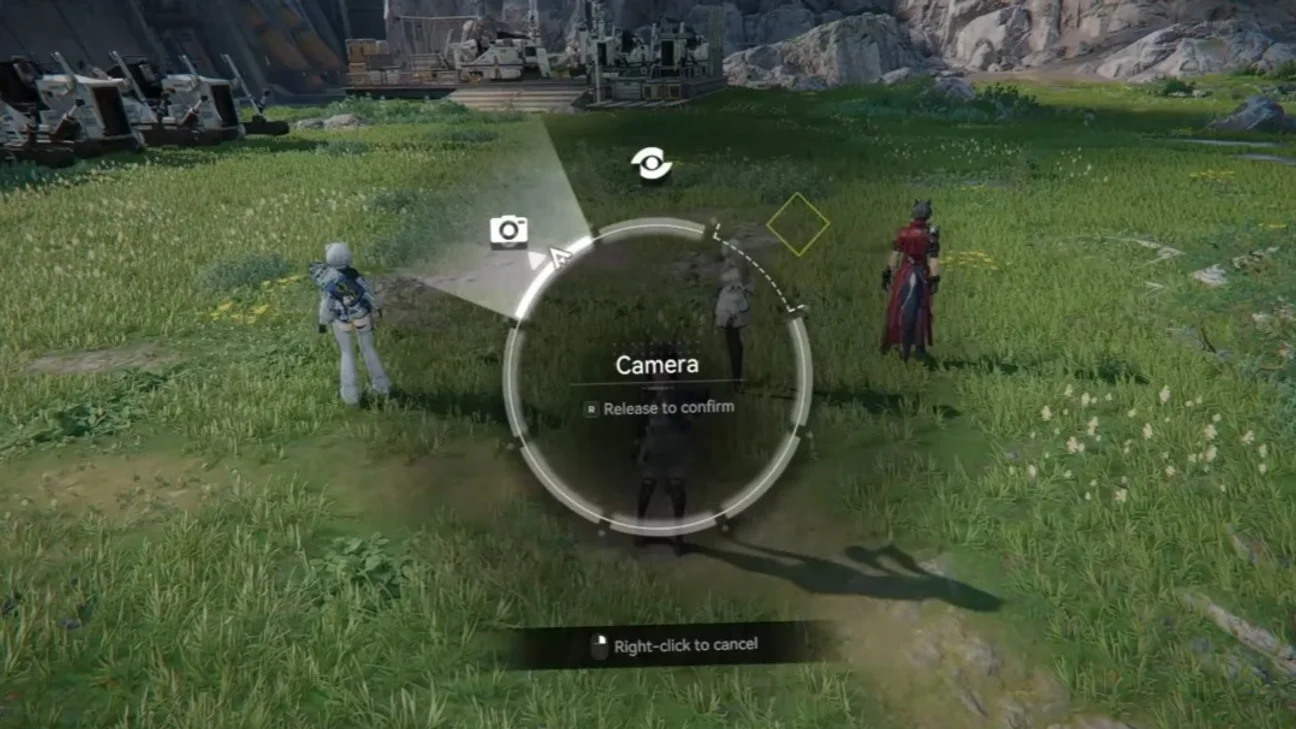
- Open the Tools Menu: On the right side of your screen, click the quick access icon.
- Select the Camera Option: Hold down the button to bring up the menu, then select the camera option.
Photo Mode shapes your shots, as it offers you various options. Here are the available options:
- Scene Controls: Show or hide characters, buildings, and objects.
- Aperture: Adjust the depth of field for varied visual effects.
- Filters: Apply different color styles to your photos.
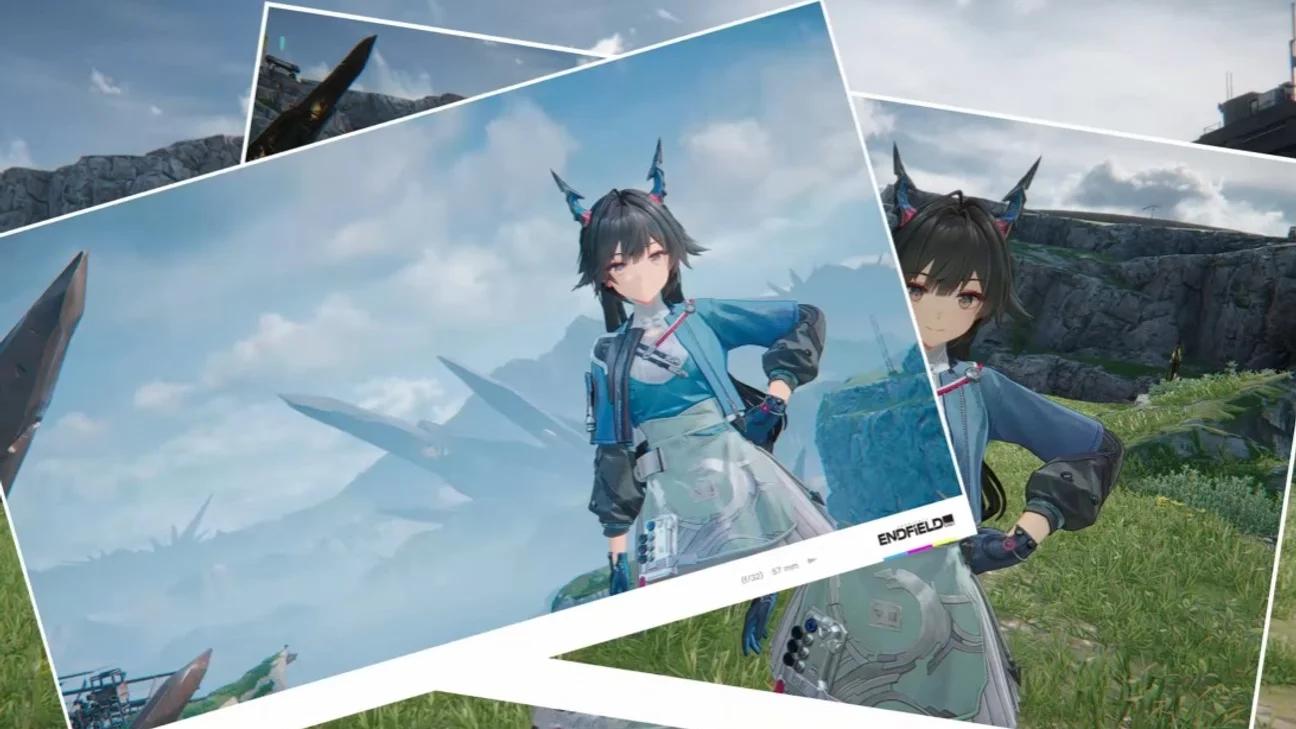
You can choose to show or hide:
- Operators: you adjust the visibility of your characters.
- NPCs: they hide non-controlled characters for a cleaner background.
- Objects: they hide unnecessary objects to create the ideal composition.
You can position your operators to compose dynamic staging that better showcases your favorite characters, or even create action scenes.
Tip
Filters give an artistic color to enrich your photos. You can try different color styles to find the one that suits you.
Taking Photos
Once your scene is all set, it's time to take photos. Here are a few tips to help you be satisfied with your results:
- Stability: Make sure the camera doesn't shake so your photos aren't blurry;
- Angles: photograph from several angles to get the best result;
- Lighting: take advantage of the game's lighting, which creates some beautiful visual effects.
Once you've successfully taken your photos, you need to know how to find them. Here's how:
On PC: screenshots are automatically stored in your computer's Pictures folder. You can then easily share and edit them.
On mobile and consoles: For phones or consoles, your device's gallery lets you extract the various captures you've taken from the game.
Share this article
What do you use most in Arknights: Endfield's Photo Mode?
Frequently asked questions
How do I access Photo Mode in Arknights: Endfield?
Click the quick access icon on the right side of your screen to open the Tools Menu, then press and hold the button and select the Camera option.
What options are available to customize my photos?
You can use Scene Controls to show or hide operators, NPCs, and objects, adjust Aperture for depth of field, and apply Filters with different color styles.
Where are my screenshots stored after taking them?
On PC, screenshots are automatically saved to your computer's Pictures folder. On mobile and consoles, they can be found in your device's gallery.
How can I create the best possible photos?
Make sure the camera is stable to avoid blur, try several shooting angles, and take advantage of the game's lighting to create eye-catching visual effects.
Key takeaways
- Access Photo Mode via the Tools Menu by clicking the quick access icon on the right side of the screen.
- Customize your captures with scene controls to show or hide operators, NPCs, and objects.
- Use aperture to adjust depth of field and filters to enhance your photos with artistic color.
- Compose your scenes by dynamically positioning your operators to showcase your characters.
Comments
No comments yet. Be the first to react!
Leave a comment
Similar guides
Latest articles



Your opinion counts
Rate Arknights: Endfield
Click a star to rate