 Fabian Lainé
Full Guide
Crimson Moon: The Best Anti-Lag Graphics Settings for PC, Our Tips
In brief
Crimson Moon launches on PC with notorious optimization issues, but a few targeted tweaks are enough to eliminate most stutters and FPS drops. This guide offers a baseline configuration designed for modest setups, with Resolution Scale at 70% and a 60 FPS cap as the essential pillars.
Crimson Moon just came out on PC, and in terms of optimization, it's still a bit of a mess. The Steam reviews confirm what a lot of players have been reporting since day one: stutters, FPS drops, and a default setup that clearly doesn't do the game justice. Good news, going through the settings is enough to calm down most of the issues.
This guide is aimed mainly at configs close to the minimum requirements, not machines that are already running like clockwork. If your PC is closer to the recommended specs, you can push some sliders up a bit, but keep this base as your starting point.
Basic Display Settings
Before touching the advanced graphics options, first set up the essentials:
- Display Mode: based on your preferences, no particular impact on performance
- Resolution: your screen's native resolution, don't cheat on this one
- V-Sync: off. Only turn it on if stutters persist despite everything else
- Motion Blur: off, it doesn't help at all and just blurs things for nothing
- FPS Limit: 60 FPS. That's the sweet spot. Beyond that, stutters show up in certain areas of the game
Capping the framerate at 60 is honestly the setting that makes the biggest difference. A lot of players think removing any limit improves smoothness. Here it's the opposite: capping it clearly smooths out the experience.
Graphics Quality in Custom Mode
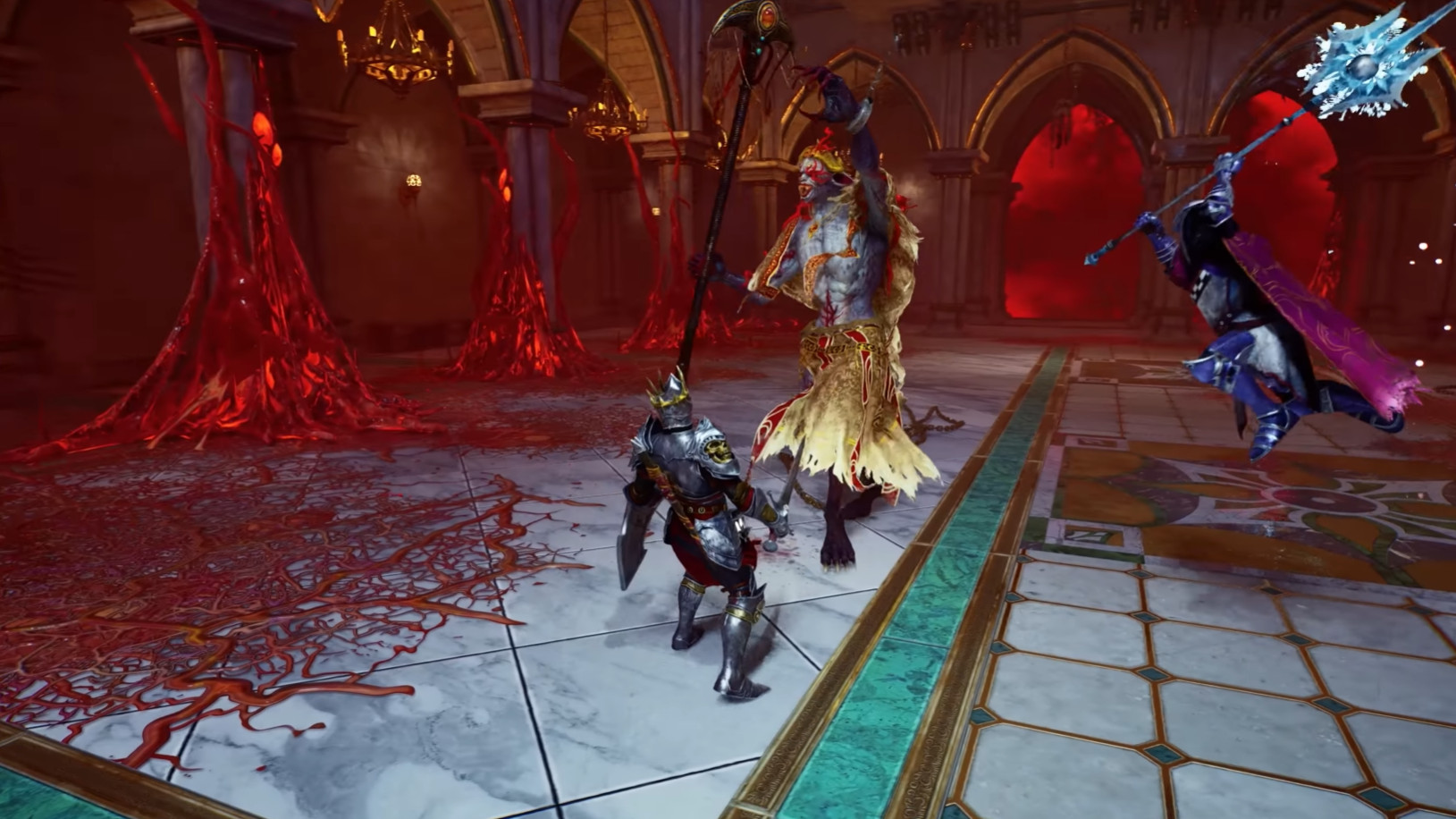
Switch it to Custom to control each option individually. Here's the configuration that limits lag without turning the game into a pixelated mess:
- Resolution Scale: 70%
- Global Illumination: Low
- Shadows: Low
- Anti-Aliasing: Medium
- Draw Distance: Close
- Texture Resolution: Medium
- Visual Effects: Low
- Reflections: Low
- Post Processing: Medium (switch back to Low if drops persist)
Resolution Scale at 70% does most of the heavy lifting for gaining FPS. Yes, the image loses a bit of sharpness, but it's the most worthwhile trade-off on the whole list for a modest setup.
Upscaler, Frame Generator and Low Latency
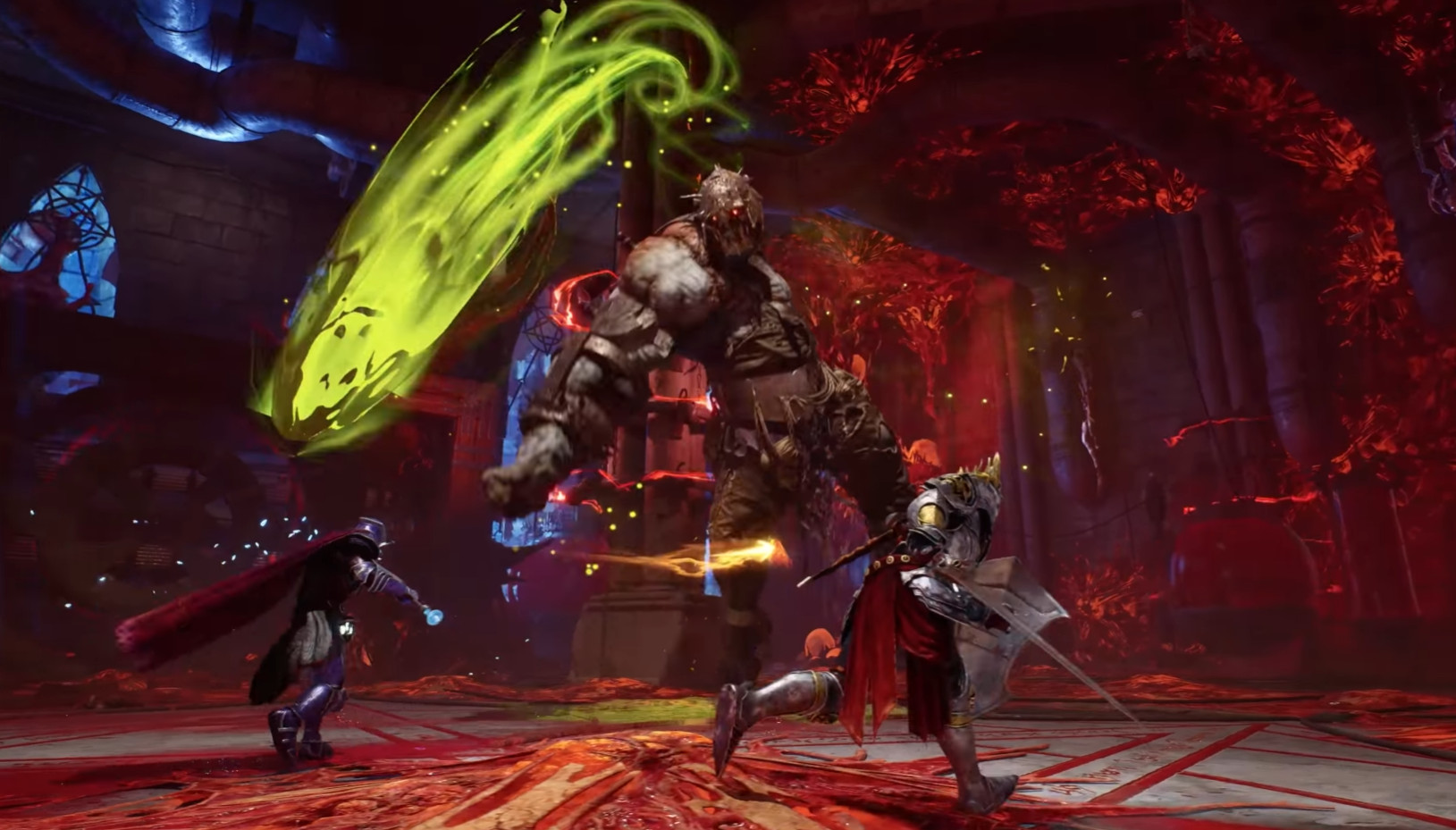
For these three options, the basic recommendation is to leave everything on None. That said, the Upscaler is still an option worth turning on if you're still seeing FPS drops after applying everything else: in that specific case, it's clearly worth it.
Frame Generator and Low Latency Mode, on the other hand, don't bring anything particular in the tested configuration. No need to turn them on by default.
What About After These Settings?
Once these settings are applied, most of the smoothness issues disappear. There are probably still a few post-launch patches to wait for to fix the remaining graphical bugs: that's the fate of a lot of recent indie releases, and Crimson Moon is no exception. In the meantime, this configuration remains the best known baseline for playing without suffering from lag or repeated FPS drops.
Share this article
On your PC, what would you like Crimson Moon to prioritize?
Frequently asked questions
Why 60 FPS and not more if my PC can push higher?
Because beyond 60 FPS, certain areas of the game generate stutters despite sufficient theoretical power. This is a behavior observed in the current version, likely linked to an engine optimization issue. Capping the limit clearly smooths out the experience.
Will lowering Resolution Scale to 70% really make my game look ugly?
The loss of sharpness is real, that's honest. But it's the most cost-effective trade-off: you gain a huge amount of FPS for minimal visual damage. On a modest setup, it's frankly the best deal on the list.
Do I really need to put everything on Low or Medium for it to work?
Not necessarily if your PC is close to the recommended specs. The proposed configuration is mainly aimed at minimum spec setups. If you're above that, you can slightly raise some sliders, but keep this baseline as a starting point to gauge where you can afford to push things higher.
What does enabling the Upscaler change if I still have drops?
The Upscaler renders the image from a lower resolution while smoothing it visually. If after all the other settings you're still struggling, it's definitely worth trying. Frame Generator and Low Latency Mode, on the other hand, don't bring anything particular here.
When will the devs patch all these issues?
It's not 100% certain, but post-launch patches are likely coming. That's the fate of many recent indie releases, and Crimson Moon is no exception. In the meantime, this configuration remains the best known baseline for playing without suffering lag.
Key takeaways
- Capping at 60 FPS drastically smooths out fluidity, contrary to what most players think when they believe removing the limit helps
- Resolution Scale at 70% is the setting that gains the most FPS for the least visual loss
- Motion Blur and V-Sync should stay disabled by default, unless stutters persist despite everything else
- Switching graphics quality to Custom mode lets you target each option individually rather than being locked into a preset
- The Upscaler is worth it if you're still struggling with FPS after these tweaks, but Frame Generator and Low Latency Mode don't bring anything here
Comments
No comments yet. Be the first to react!
Leave a comment
Similar guides

Latest articles
Your opinion counts
Rate Crimson Moon
Click a star to rate