

 Fabian Lainé


Full Guide
inZOI: building the dream house — complete Build Mode guide 2026
In brief
inZOI 2026 offers an ultra-comprehensive Build Mode for constructing the house of your dreams: from structural tools (walls, roofs, staircases) to terraforming, plus generative AI capable of retexturing any piece of furniture with a single sentence. Between a smooth interface, a multi-story system, and a massive object library, you'll have material to create with for hundreds of hours.
Since entering early access at the end of March 2025, inZOI won over more than a million players in its first week and crystallized a formidable community of creators: over 470,000 pieces of content uploaded to Canvas on launch day. In 2026, the Korean studio inZOI Studio (Krafton) continues to expand a critical part of the game: its Build Mode. Between the millimeter-precise wall tool, the generative AI able to retexture a sofa on the fly, and the fully editable terrain, there's enough here to spend as many hours in blueprints as playing your Zoi. This guide covers everything you need to know to build, starting today, the house that reflects who you are in Bliss Bay, Cahaya, or Dowon.
Opening Build Mode and reading its interface
Build Mode can be activated from any residential lot: open the quick interaction wheel (ESC key by default, then Edit Lot) and you'll switch to the blueprint view. inZOI inherits a visual philosophy close to that of modern life simulators, but with Unreal Engine 5 rendering: textures preview in real time with full PBR, global lighting adjusts automatically when you add a wall, and the camera moves freely between orthographic and immersive ground-level views.
The toolbar, anchored at the bottom of the screen, breaks down into five main categories: Build (structure), Furniture, Terrain, AI Customization, and Canvas. A TAB shortcut toggles between the magnetic grid (precise placement to the half-tile) and free placement (rotation to within one degree). Newcomers will need a few minutes to identify the modifiers: ALT unlocks height, SHIFT multiplies/duplicates an object, the Scroll Wheel adjusts terrain brush size.

Core construction tools: walls, floors, roofs, staircases
The heart of Build Mode relies on five foundational tools. Each is used by clicking and dragging on the grid, but also accepts numerical input to lock in an exact length, very useful for recreating a real floor plan.
- Wall: three thicknesses available (thin partition, standard, load-bearing wall). Each section automatically detects junctions and applies corner molding. Hovering over a face lets you apply a different exterior/interior finish with one click.
- Floor: the smart brush instantly fills an enclosed room (
SHIFT + clickshortcut). Patterns come in tile, hardwood, polished concrete, carpet, and composite materials, with no level limit. - Roof: four templates (flat, gable, hip, mansard) drawn out with the mouse. The pitch can then be adjusted to the exact degree via a side slider, and the overhang can be extended independently on each face.
- Staircase: four models (straight, L-shaped, U-shaped, spiral). The tool automatically cuts the upper level's floor to create the stairwell opening, and offers a matching railing.
- Foundation: adjustable height from 0 to 1.5 meters to create a crawl space or a raised entrance typical of seaside homes in Bliss Bay.
Windows, doors, and architectural details
Once the structure is up, the Openings tab brings together doors, windows, archways and glass partitions. inZOI applies a practical convention: openings snap to the targeted wall, height is adjustable, and they duplicate in a row with a shortcut (CTRL + D). It's also worth noting the panoramic window mechanic that merges several sashes to create a continuous bay window — essential for the Santa Monica-style coastal villa.
Balustrades, columns, cornices and friezes are grouped in an Ornament submenu. Each element offers several finishes (raw wood, lacquered, patinated metal, marble) and comes with a template system that lets you apply the same style to the entire façade without reconfiguring each object.
The land: expand, terraform, plant
Unlike many simulators, inZOI allows for localized terraforming on the plot. The Terrain tool offers four brushes: elevation, flattening, smoothing and texturing. This lets you sculpt a sunken pool, a hill to raise the living room, or a gentle slope to blend a villa into the tropical terrain of Cahaya, the Balinese region added for free via the Island Getaway DLC released on August 19, 2025.
Three useful technical points:
- Plot size is adjustable within the neighborhood's limits (expansion onto adjacent empty lots is possible, in exchange for positive karma in some cases).
- The Vegetation brush lays down procedural grass that reacts to wind and weather (the Cahaya DLC introduces heat waves and torrential rain).
- A Path mode draws walkways and trails that automatically follow the terrain.

Furnishing: categories, styles and features
The object library can be browsed by category (Living Room, Bedroom, Kitchen, Bathroom, Office, Outdoor, Decoration, Lighting, Appliances, Miscellaneous) or by mood (Minimalist, Scandinavian, Industrial, Coastal, Korean Traditional, Wabi-sabi, Neo-K). Each object displays a full profile:
| Category | Examples | Native options |
|---|---|---|
| Seating | Modular sofas, bergère armchairs, poufs | Rescaling, materials, colors separated by part |
| Bedding | King beds, Korean futons, cribs | Interchangeable headboard, customizable bedding |
| Appliances | Refrigerators, washing machines, induction cooktops, TVs | Energy consumption, fictional brand, Zoi interaction |
| Lighting | Ceiling lights, wall sconces, neon signs, string lights | Color temperature, intensity, auto schedule |
| Outdoor | Pool, jacuzzi, hammock, barbecue | Dynamic water effects, multi-Zoi interactions |
Right-clicking an object opens the material selector: each part (seat, backrest, legs) accepts a different texture, and objects with modular geometry (corner sofas, Kallax-like bookshelves) can be assembled piece by piece.
Generative AI: customizing an object in one sentence
This is inZOI's big signature feature. From a piece of furniture's card, an AI Prompt tab lets you enter a description in natural language to generate a new texture or a new pattern. Write "Japanese Shou Sugi Ban burnt wood with golden grain" on a coffee table: the texture is computed server-side, applied within seconds, then saved to your personal library. The system also accepts an imported reference image: inZOI analyzes it and adapts it to the object's UV surface.
Beyond textures, the 2D to 3D feature converts a photo (vase, figurine, toy) into a decorative object that can be added to the scene. The result obviously doesn't match the precision of a hand-crafted asset, but it turns out to be impressive for figurines, vases, or trinkets. Three guardrails to keep in mind:
- Each generation consumes an AI credit; these credits recharge daily for free, with a queue during peak hours.
- Prompts are filtered (trademarks, explicit content): favor descriptions of materials, patterns, and styles.
- Generated creations can be shared via Canvas, but remain linked to your account for traceability.
Multiple floors and vertical levels
inZOI offers four standard floors plus basements and mezzanines, each edited independently via a vertical selector on the right side of the screen. Foundations can be raised to create mixed spaces (semi-underground garage + elevated living room). The Column tool detects loads when a floor rests on an empty section, and automatically suggests a discreet post for visual reassurance — it's cosmetic but useful for purists.
Key tip: the cross-section view (shortcut C) slices horizontally at a chosen height to furnish a floor without being hindered by the levels above. An X-ray mode also reveals simulated cables, pipes, and ducts, purely decorative, but which can be hidden for a minimalist look.
Magnetic grid, free placement, and precision
It's a classic debate in life simulators: visual constraint or total freedom? inZOI doesn't choose and offers both, switchable on the fly. In grid mode, objects snap to the half-tile (about 25 cm), which guarantees clean alignments for a result close to an architect's blueprint. In free mode, rotation becomes continuous down to the degree, and height is adjusted with ALT + scroll wheel. You can also merge several overlapping objects: two coffee tables pushed together, a lamp placed exactly at the edge of a shelf, a rug that hangs over the edge of a low piece of furniture.

Preset themes and community templates
For those who prefer decorating rather than building from scratch, inZOI includes a library of preset themes by room (Scandinavian kids' bedroom, industrial kitchen, wabi-sabi bathroom). One click loads the full set of coherent objects into the active room, which you can then freely adjust. The top bar also features the Canvas tab, the game's community portal: entire houses, individual rooms, customized furniture or outfits, everything is downloadable with one click.
Each Canvas creation comes with a download counter, a rating system and a 3D preview before importing. The studio spotlights selected creations every week, and the Sandbox mode lets you test a Canvas blueprint on an empty lot without committing to a save.
Bliss Bay, Cahaya, Dowon: adapting your build to the setting
Each city in inZOI has its own visual and climate codes:
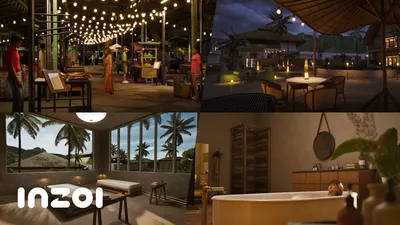
- Bliss Bay (inspired by Santa Monica): go for light wood cladding, large sea-facing bay windows, a pergola and outdoor teak flooring. The mild weather allows for open patios and outdoor fireplaces.
- Cahaya (the Balinese tropical island from the free Island Getaway DLC): open structures on stilts, thatched roofs, mosquito nets, wide eaves. Torrential rain episodes call for visible gutters and drainable flooring.
- Dowon (a Seoul-inspired metropolis): verticality, glass façades with dark metal frames, modernized low hanok furniture, stylized ondol heated flooring. It's the ideal setting to test out the native Neo-K palette.
What really changes compared to The Sims 4
Many newcomers are arriving straight from Electronic Arts' simulation. inZOI's Build Mode borrows the fundamental conventions, but departs from them on several structural points:
| Feature | The Sims 4 | inZOI |
|---|---|---|
| Local terraforming | Limited (height ±4 notches) | Continuous brush, free texturing |
| Custom textures | Via third-party mods only | Native AI prompt + image import |
| Custom-made objects | None officially | Built-in 2D-to-3D generator |
| Free rotation | ALT (in 15° increments) | Continuous rotation by degree |
| Community sharing | EA Gallery | Canvas with AI recommendation |
| Rendering | In-house engine | Unreal Engine 5, full PBR |
The corollary: the learning curve is a bit steeper, and so is the GPU load (an RTX 3070 is recommended), but creative freedom takes a notable leap forward. Mod support, officially active since May 2025 following the removal of Denuvo, rounds out the ecosystem with powerful community-made extensions.

Five advanced tips for building quickly and well
- Lock the camera in orthographic view (press
O) during the main structural work: alignment errors are immediately visible. - Name and save your templates: an entire living room or a complete bathroom can be recalled in one click on all your future lots.
- Combine the terrain brush with raised foundations to create a stilt villa in Cahaya without struggling with staircases.
- Use the AI prompt in batch mode: apply the same generated texture to all the furniture in a group for a consistent look (The Sims works object by object).
- Watch your karma budget: renovating an occupied lot too often can tank the well-being score of the Zois living there, an effect specific to inZOI.
In conclusion: building is already playing
inZOI's Build Mode isn't just an auxiliary tool: it's a creative pillar on par with Create a Zoi. By combining the genre's inherited fundamentals (grid, walls, roofs, categorized furniture) with generative AI and Unreal Engine 5, Krafton's title offers in 2026 the most complete toolkit on the market for building your dream home. The best advice remains to devote an entire evening to it, without any Zoi to manage, to feel the freedom that few simulators offer today. Test every tool, save your templates, explore Canvas, and don't hesitate to start over: an empty lot rarely stays an abandoned construction site for very long.
Share this article
Which aspect of Build Mode appeals to you most in inZOI?
Frequently asked questions
How do you access Build Mode, and is it complicated for a beginner?
Open the quick interaction wheel (ESC by default), select Edit Lot, and you're in blueprint view. The interface is divided into five categories anchored at the bottom (Build, Furniture, Terrain, AI Customization, Canvas); take a few minutes to memorize the shortcuts (TAB to toggle grid/free placement, ALT for height, SHIFT to duplicate), and you're good to go.
How does the generative AI work, and how much does it cost?
Right-click a piece of furniture, go to the AI Prompt tab, describe the texture or pattern you want (material, style, grain, etc.), and confirm. Each generation consumes a credit that recharges for free every day; during peak hours, you'll wait in a queue.
Can I really terraform my lot however I want, or are there limits?
You can freely sculpt your terrain (raising, flattening, smoothing, texturing), and expand your lot by claiming adjacent empty plots under certain karma conditions. However, you can't go beyond the neighborhood's boundaries.
Is the tool for making panoramic windows really essential, or just marketing?
It's useful for large bay windows: the tool merges multiple panels to create visual continuity without interrupting mullions, essential if you want a believable coastal villa with an unobstructed view.
Can you use the cross-section view to furnish without being bothered by the upper floors?
Exactly: press C, slice at the height you choose, and furnish that floor without visually being blocked by the levels above. A welcome bonus for detail work.
Key takeaways
- The five foundational tools (wall, floor, roof, staircase, foundation) support numerical input and automatically detect junctions for precise placement.
- The generative AI transforms any piece of furniture with a natural language description: "Japanese Shou Sugi Ban burnt wood" generates the texture in just a few seconds.
- Localized terraforming lets you sculpt the terrain at will: sunken pools, integrated hills, natural slopes with no zone limit.
- The multi-story system handles four standard levels plus basements and mezzanines, with automatic load detection and a cross-section view to edit without being hindered by upper floors.
- Row duplication (CTRL + D) and ornament templates speed up work on façades: apply the same style to the whole house in two clicks.
Comments
No comments yet. Be the first to react!
Leave a comment
Similar guides




Latest articles








Your opinion counts
Rate inZOI
Click a star to rate